
Salesforce data cleansing decides how much of your revenue stack you can trust.
Routing, forecasting, territory models, and now AI agents all read from the same records.
For years, there was a human pause between a bad record and a bad decision, a rep or an analyst catching the number that looked off before anything acted on it.
Automation is shrinking that pause, and AI agents are closing what’s left of it.
Now, there’s no one between the record and the action. An agent takes the data at face value and runs with it.
Wrong has never looked more right, and it has never moved this fast.
The good news? You don’t need to fix everything at once.
Clean Salesforce environments run on two tracks, and you can implement both piecemeal until you can stand behind the data every agent, workflow, and forecast runs on.
What is Salesforce Data Cleansing?
Salesforce data cleansing is the process of identifying and resolving inaccurate, incomplete, duplicate, and outdated data in your Salesforce CRM.
What makes Salesforce data cleansing uniquely challenging is the interconnected nature of the Salesforce data layer.
From lead-to-account matching to mass territory reassignment and reporting, a misspelled company name or a missing field can break workflows several steps downstream.
That level of dependency means you can’t treat cleanup as a quarterly chore. Keeping Salesforce data clean is continuous work on two tracks:
- Reactive strategies that fix what’s already inside. Examples are bulk deduplication to merge duplicate records at scale, and field restoration to fill gaps like missing industry or revenue values.
- Proactive strategies that prevent bad data from entering. These include standardized field inputs, validation rules, and clear naming conventions.
How Dirty Salesforce Data Breaks Routing, Reporting, and Forecasting
Duplicates under-count accounts and misroute leads
Every contact, activity, and opportunity in Salesforce carries a single AccountId, so a duplicated company scatters its history across the copies. And any process reading one copy under-counts the whole company.
The cleanup path is just as constrained.
A standard Salesforce merge handles at most three records at a time, and whatever data the losing records held that the survivor didn’t is gone once the merge commits.
Duplicate rules only evaluate when a record is created or edited, so a list import or an API sync can seed hundreds of new copies that no rule ever re-checks.
Small flaws also produce failures far larger than themselves:
| Data Quality Flaw | Downstream Failure |
|---|---|
| Near-duplicates (“Acme Corp.” vs. “Acme Corporation”) | Matching engines interpret them as separate companies, leading to duplicate outreach and rep conflict |
| Stale territory IDs after a realignment | Rules fire, but the lead gets stamped with last quarter’s ID, causing the lead to land in a catch‑all queue |
| Orphan child accounts with no parent | Hierarchy‑based rules can’t resolve the owner, causing service‑level agreement (SLA) timers to start on an unassigned lead |
Lead routing breaks next.
Routing rules factor in ICP fit, intent scores, the current opportunity owner, and where a lead sits in an account hierarchy, so one wrong field can misfire the whole sequence.
But fix the underlying fields and routing accuracy climbs just as fast. Cisco’s marketing operations team improved assignment accuracy by 150% once matching ran on clean account data, and now spends far less bandwidth double-checking assignment quality.
One unreliable field, multiple broken processes
Duplication is one of four ways a field goes bad.
A field can also sit empty, hold a format no rule reads, or carry a value the business outgrew. What breaks depends on which field fails:
| Field | Missing | Non‑standardized | Stale | Duplicated |
|---|---|---|---|---|
| Employee count | Can’t segment: the account lands in the wrong tier, territory, and rep | “500” and “500–1000” break every rule built on the field | Headcount changed years ago but tier rules still read the old number | Two records, two headcounts means territory and comp disputes |
| Revenue | ICP scoring breaks, and high‑priority accounts get deprioritized | “$5M,” “5000000,” and “5M”: three formats, no reliable roll‑up | Expansion thresholds built on the field don’t fire | Two revenue figures per account. The forecast depends on which record you ask |
| Geo / location | Territory assignment can’t run, so the account sits unowned | “New York,” “NY,” and “NYC” don’t match: reports drop or double‑count them | HQ moved; the old address puts the wrong rep on it | Same account in two territories: two reps chasing one prospect |
| Parent‑child links | Subsidiaries get worked in isolation | Name variants break matching, so the hierarchy never gets built | A year‑old acquisition: you’re cold‑calling a company you already own | One enterprise across many records: inflated pipeline nobody trusts |
| Industry | Vertical territory rules have nothing to read | Providers classify industry differently | Old labels still drive every process | Duplicates carry different verticals, and vertical reporting splits |
Duplicates reach customers too.
Two reps contact the same person about renewing because their records carry different contract dates. An Opt-Out value overwritten in a careless merge exposes you to CCPA, CASL, and GDPR fines.
The gap between believing the data and managing it shows up in the 2025 CRO Survey: half of CROs felt confident in the cleanliness and actionability of their CRM data, and only 20% of the RevOps leaders who manage that data agreed.
The same survey ranked duplicate records (53%) and legacy data clutter (50%) as the top data challenges enterprise teams face.
Reporting and forecasting break last
Native roll-up summary fields only aggregate across master-detail relationships, and Parent Account is a lookup, so revenue never climbs the account hierarchy natively no matter how clean the links are.
Net Revenue Retention (NRR) also looks weaker when expansion in one subsidiary offsets churn in another, and subsidiary deals tagged as net-new inflate acquisition metrics.
For example, Disney contracting by $10K while Hulu signs a $50K deal reads as churn plus a new logo when the two sit unconnected. But in a unified account hierarchy, it’s actually a $40K expansion.
That’s why leading account hierarchy software deduplicates records before building the tree, to avoid issues exactly like this.
Proactive Salesforce Data Cleansing Strategies
Proactive cleansing is the daily-brushing half: habits and guardrails that keep messy data from forming in the first place.
Field standardization
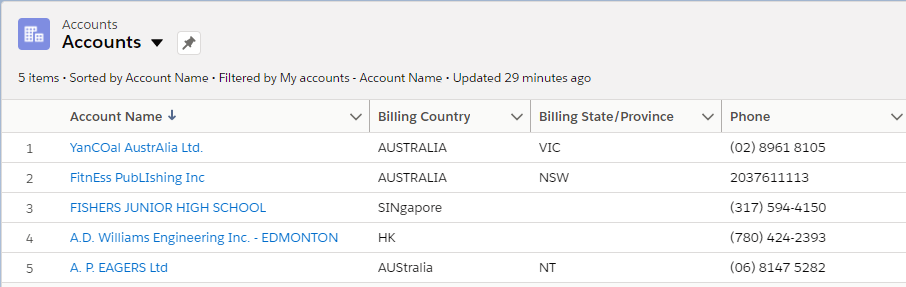
Instead of a state living in three formats or job titles written a dozen ways, standardization enforces a single, predictable shape.
Implementation tips:
- State and country picklists. Turn on Salesforce’s State and Country/Territory picklists to normalize global data entry. Without them you’ll accumulate “CA,” “Calif.,” and “California,” and your territory assignments will pay for it.
- Phone formatting. Use Salesforce Record-triggered Flows to auto-format phone numbers into E.164. Consistent formats boost match rates and keep integrations with Outreach or ZoomInfo from choking on mixed inputs.
- Job titles. Build a standardization routine via Flow or custom Apex that maps common variations to a controlled set of values for persona targeting.
- Normalize before enrichment. Imports and enrichment providers like Dun & Bradstreet (D&B) prioritize speed and completeness over consistency. Run batch normalization jobs before enrichment so errors don’t compound.
Pro Tip: Automatically Standardize Any Salesforce Field with Data Agents
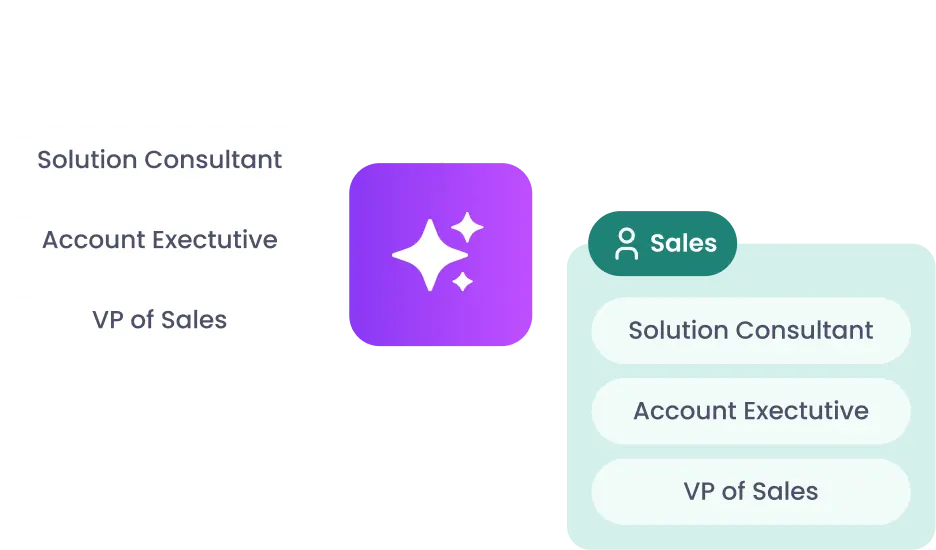
Instead of relying on reps or Flows to catch every inconsistency, you can leverage Data Agents to standardize critical fields like phone numbers and job titles as records enter Salesforce.
Formats stay matched, routing logic holds, and reps work from reliable data.
WATCH: How to Normalize Salesforce Fields with AI
Validation rules
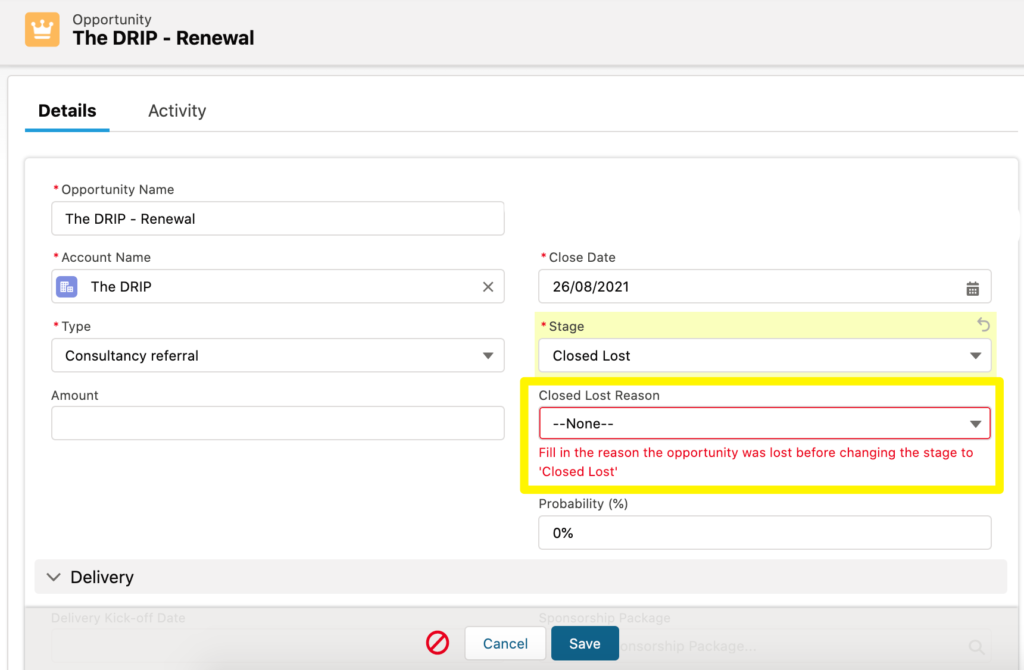
Validation rules stop reps and integrations from saving incomplete records that would surface later in reporting, routing, and forecasting.
But overuse cuts the other way: validation rules that frustrate reps produce workarounds that introduce more bad data.
The goal is balancing data quality with user experience so the rules actually get used.
Implementation tips:
- Critical fields only. Require high-value fields like Industry, Territory, or Contract Date before saving. Making 10+ fields mandatory pushes reps to enter junk or “n/a” just to move forward.
- Conditional validation. Tailor rules to business context. Require Close Date only for opportunities marked Closed Won or Contract Sent, so reps fill in what matters without wading through irrelevant requirements.
- Always test validation rules. Rules that clash with integration feeds from tools like Marketo are a common failure. Test against automated data sources before pushing live so you don’t block critical syncs.
Pro Tip: Use AI-Powered Validation to Automate Data QC
Traditional validation rules can’t tell whether “Santa Claus” at “test@test.com” is a real lead.
Data Agents do; they can flag fake names, placeholder emails, and nonsense companies in real time before they clog reports and waste rep time.
At one large social platform, that screening flagged about 1.5 million junk and duplicate web-form accounts before reps chased them.
WATCH: How to Validate Records in Salesforce with AI
Duplicate prevention logic
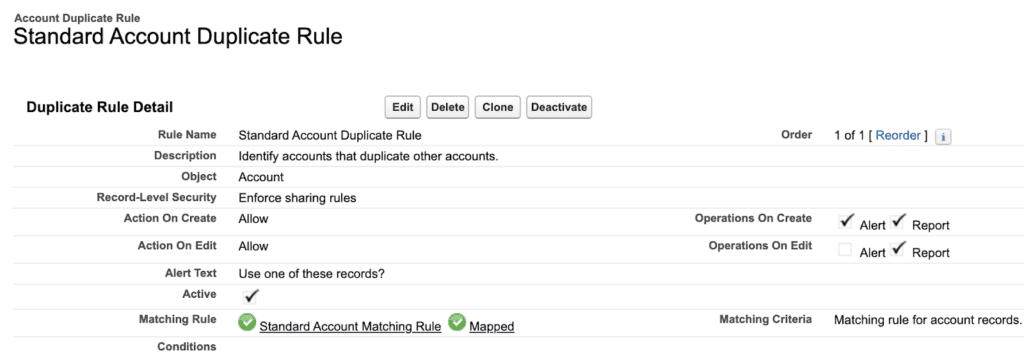
Native matching rules and duplicate rules flag potential duplicates as users create them.
Implementation tips:
- Use fuzzy matching. Salesforce’s standard matching rules ship with fixed fuzzy algorithms (Edit Distance, Acronym, Name Variant) that catch variations like “ABC Inc.” vs. “ABC Incorporated.”
- Schedule duplicate jobs. Run deduplication jobs at off-peak hours to catch records that slipped past. Start in Report Only mode so you can audit matches before merging.
- Set survivorship logic. Define which field values win during merges. Sometimes the most recent email address should beat the last-modified date, and sometimes the reverse.
- Add a third-party tool or custom logic. Native fuzzy matching stops at those built-in dictionaries, so regional spelling differences (“Colour” vs. “Color”) and custom match keys need custom Apex or a dedicated tool.
Prevention also comes from visibility.
Reps create duplicates when they can’t find the account that already exists, which is why one VP of Sales Operations and Enablement points at the account tree:
When our sellers were looking for an account to associate an opportunity to, they would either spend time Googling or just create a duplicate — and that was our big problem.
Eric Chapman, VP of Sales Operations and Enablement at Octave
We had folks creating duplicate accounts, thousands of them a month, around the world.
Reactive Salesforce Data Cleansing
Proactive habits keep most issues out, but no intake layer is perfect. Old imports, API feeds, and manual entry errors still get through, even with picklists everywhere.
Reactive cleansing repairs those issues after the fact: finding what accumulated and removing it before it spreads into routing and reporting.
Mass deduplication
Where preventive measures stop duplicates at entry, mass deduplication clears the historical backlog: list uploads, enrichment syncs, and reps entering slight variations of the same account.
An [org merge] multiplies that backlog overnight, since both orgs bring their own copy of every shared account.
In practice, reactive dedupe means running Duplicate Jobs within Salesforce Setup, pulling reports of potential matches, and reviewing merge candidates side by side to decide which values to keep.
1. Identify duplicates with Duplicate Record Sets
- When Duplicate Jobs run, Salesforce creates Duplicate Record Sets that group suspected duplicates together.
- These sets become your working list for reactive cleanup.
2. Manually merge small batches
- From a Duplicate Record Set, click into the records and use the standard merge wizard (available on Accounts, Contacts, and Leads) to consolidate up to three records at a time.
- This tool lets you pick which fields to keep for each record.
3. Handle large data volumes with Data Loader
- Export duplicates to a CSV (from Duplicate Record Sets or a custom report).
- Clean and map the data externally (decide your “survivorship” field values in Excel/Sheets).
- Re-import using Data Loader to update master records, then mass delete the leftover dupes. Note that you’re limited to processing 5 million records in a single operation, and the max file size is 5GB.
4. Log and audit
- Use a custom report or export of “merged” vs. “deleted” records to show what was consolidated and preserve an audit trail.
- Store a backup CSV of original duplicates before deletion.
Implementation tips:
- Start with a duplicate audit. Build a report filtered on likely dupes (accounts sharing a domain, contacts with matching phone numbers) to size the problem before launching a cleanup.
- Batch your cleanup. Break large Salesforce data cleansing projects into waves by territory, account owner, or creation date so reps aren’t hit with sudden record changes.
- Preserve history. Back up duplicates to a CSV before merging so you can restore activity or values if a merge overwrites something important.
Run well, the backlog clears fast. YMCA of San Diego County decreased duplicates by over 75% with customizable merge logic.
Data enrichment updates
Legacy records lose usefulness over time. Accounts with no industry, leads with dead emails, and contacts missing territories all limit segmentation and make prioritization harder.
Stale records is a reoccurring headache: in our 2025 RevOps AI Leadership Survey, 73% of operators cite incomplete enrichment as their top headache.
Enrichment through third-party providers like D&B and ZoomInfo refills those gaps with current firmographics, updated emails, and account hierarchy context.
But hierarchy context comes with a catch.
Providers deliver parent linkages as DUNS codes stamped on individual records, and until each code resolves to a real Parent Account link between deduplicated accounts in your org, routing and rollups have nothing to read. Account hierarchy data still needs operationalizing before you can actually use it.
Implementation tips:
- Identify the biggest gaps. Use Salesforce Reports or Einstein Data Detect to surface missing values in fields that drive routing and reporting, like Industry or Territory.
- Target strategically. Enrich open opportunities and active customers first so sales teams feel the benefit immediately, then work back through older or lower-value records.
- Use waterfall enrichment. No single provider is complete. Order sources by reliability (ZoomInfo for contacts, D&B for firmographics) and configure enrichment flows to fall through to the next-best source when the first can’t fill a field.
- Mix and match providers. Use each source for the fields it’s strongest on, like D&B for revenue and employee count and ZoomInfo for decision-maker emails.
- Validate before updating. Review enrichment outputs or run normalization rules so conflicting values from different providers don’t introduce new errors.
Data Import Wizard
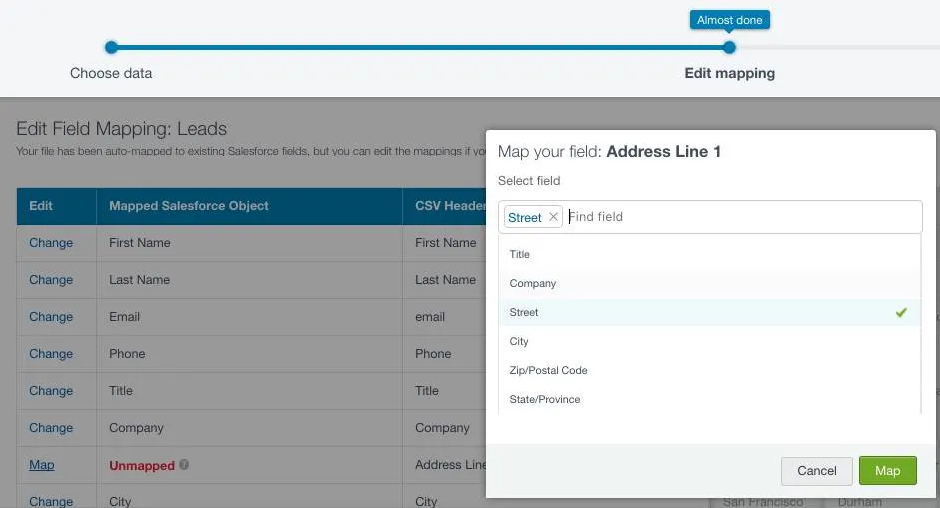
Two native Salesforce data cleansing tools carry most of this repair work: the Data Import Wizard for smaller targeted fixes, and Data Loader for full-org volume.
The Data Import Wizard suits smaller cleanup projects where you need to patch missing industries, update territories, or re-upload corrected event lists without touching Data Loader.
Implementation tips:
- Prepare your CSV first. Clean and standardize in Excel or Google Sheets before import. The Wizard won’t reformat or dedupe values for you.
- Map carefully. Use the field mapping screen to align CSV columns with Salesforce fields, and double-check picklist values to avoid errors.
- Test in small batches. Validate mappings and results with a few hundred rows before committing the full file.
- Review error logs. The Wizard generates error files for failed rows. Use them to fix issues and re-upload corrected records.
- Know the limits. 50,000 records per import, 100MB per CSV, 32MB per zip, 90 fields per file, and not every object is supported.
Data Loader
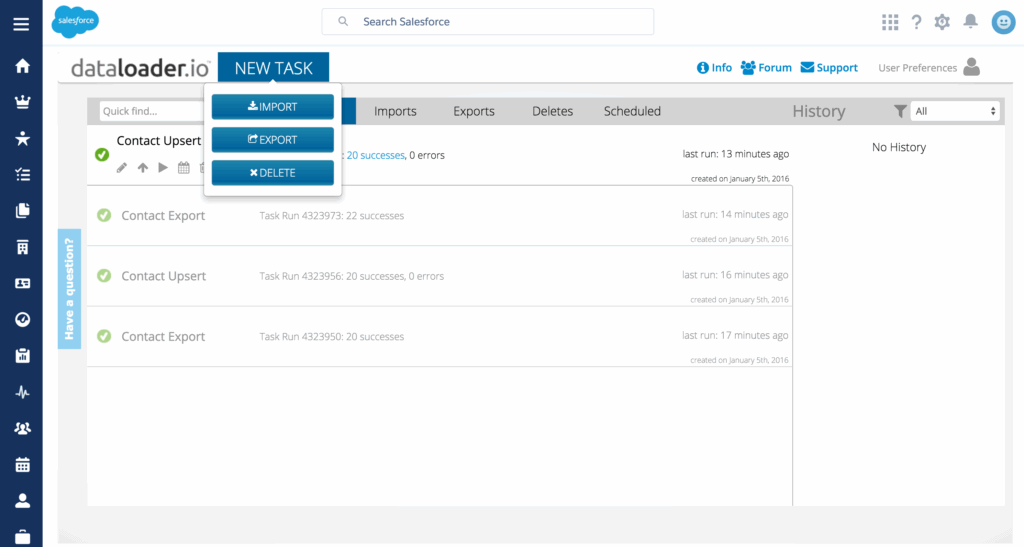
For larger and more complex cleanups, Salesforce’s Data Loader is the go-to native tool. It handles millions of records, supports far more objects (including many custom ones), and is what most admins reach for on major deduplication projects, CRM migrations, and sweeping field corrections.
Implementation tips:
- Use SOQL queries. Filter your export with SOQL to precisely target the records you want to clean, rather than pulling an entire object.
- Prepare and transform data externally. Run corrections or standardization in a CSV or a staging database before re-importing.
- Review success and error files. After each run, check the generated logs to confirm which records were updated and which failed, then fix and re-run if necessary.
- Choose the right operation. Decide whether you’re inserting, updating, upserting, or deleting records, and keep your CSV structured accordingly. For example, use upsert when refreshing enriched firmographics to avoid creating duplicates and delete to remove leads that no longer have valid emails.
Cleansing Salesforce data with Excel
Most native reactive workflows pass through the same loop: export to CSV, fix in Excel, re-import. If you’re going to live in that loop, it pays to run it properly.
A workable Excel cleanse looks like this:
- Export with an ID column. Pull records through a report or Data Loader and always include the record ID.
- Convert 15-character IDs to 18. Excel lookups are case-insensitive and Salesforce’s 15-character IDs are case-sensitive, so “001A…” and “001a…” read as the same record and corrupt your matching. Export the 18-character case-safe version instead; a formula field with CASESAFEID(Id) generates it.
- Standardize with formulas. TRIM strips stray spaces, PROPER fixes casing, and SUBSTITUTE collapses variants like “Inc.” and “Incorporated” before you compare anything.
- Flag duplicates before removing them. COUNTIF on a match key (domain, or company name + phone) marks candidates for review. Excel’s Remove Duplicates is exact-match only and deletes without showing you what it matched, so save it for the very end, after you’ve reviewed the flags.
- Re-import with upsert. Load the cleaned file back through Data Loader using the ID as the match key, so you update existing records instead of minting new duplicates.
Watch the file handling too.
Excel reformats data on open: long phone numbers flip to scientific notation, leading zeros drop off postal codes, and dates shift with your locale.
When the data matters, open CSVs through Excel’s import dialog with the sensitive columns set to Text.

See How Three Revenue Teams Fixed Their Salesforce Data Layer
Cleanups this size have already been run at Fivetran, GitHub, and Inchcape.
Our guide to fixing the data layer collects the playbooks from the leaders who ran them: Fivetran’s Senior Director of Global Revenue Operations, GitHub’s Senior Director of Marketing Operations, and Inchcape’s Head of Data.
The playbooks cover account consolidation during M&A, master data governance under outside scrutiny, and standardizing funnel data at volume. The guide ends with the five plays every Revenue Architect came back to.
5 Salesforce Data Cleansing Best Practices
Proactive and reactive data cleansing go hand in hand: one prevents problems, the other repairs them. But the real magic happens when they work together as a system.
These 6 Salesforce data cleansing best practices show you how to turn both approaches into a sustainable routine that keeps your Salesforce data clean, accurate, and actionable.
1. Treat Salesforce data cleansing as an ongoing process, not a one-off project
It’s easy to approach data cleansing like household spring cleaning — intense, infrequent, and exhausting. But unlike your house, Salesforce doesn’t stay clean for long, and the symptoms of a dirty environment aren’t nearly as obvious.
The longer you wait, the harder it is to get things back under control.
That’s why Salesforce data cleansing (and household cleaning) works best as a recurring rhythm.
So instead of waiting for problems to pile up, establish a monthly or quarterly maintenance routine. Mix quick, lightweight tasks — like spot-checking duplicates, validating enrichment freshness, and reviewing incomplete records — with deeper processes like bulk merges and mass deduplications once a quarter.
Data Agents make that process always-on instead of quarterly. They cleanse and match records inside Salesforce as new data lands, and integrity holds without a cleanup project every few months.
2. Close the loop every time your data changes
Cleaning data is one part of the process.
After you merge, match, or update your records, you have to make sure those changes cascade through your routing and ownership logic. Otherwise, even the cleanest data becomes stale in practice.
Imagine you merge two duplicate accounts. If Salesforce doesn’t re-evaluate who owns the consolidated record, you could end up with two active opportunities tied to the wrong rep, or worse, assigned to someone who’s no longer with your team.
The same problem happens when enrichment updates a region or field: that one change might mean the account belongs to a completely different territory or team.
In this context, closing the loop means creating a routine (or better yet, automation) that listens for these changes and immediately reroutes, reassigns, or alerts the right people.
For example:
- When a merge completes, trigger an ownership check and update the record’s territory
- When enrichment adds new firmographic data, re-run lead-to-account matching
- When a rep goes out of office, use fallback routing to automatically reroute new inquiries to the next available queue
Automated solutions like Complete Leads give you extra leverage, extending your routing logic to work hand in hand with your data hygiene processes.
When you merge a lead or match it to an account, for example, you can configure Complete Leads to re-run routing rules, apply fallback logic for unavailable reps, and confirm assignment — all natively within Salesforce.
3. Build clean intake lanes for uploads and event lists
Event signups, webinar lists, and partner imports are carriers for dirty data. If you upload them without structure, you’re back to chasing duplicates and incomplete records.
That’s why your import process should follow the same balance of proactive and reactive cleansing you apply everywhere else.
In practice, this means that every upload should pass through two defined intake lanes:
- Proactive: normalizing fields, enforcing naming conventions, and requiring complete data before uploading.
- Reactive: flagging near duplicates, reviewing exceptions, and merging records immediately after import so issues don’t spread
After you’ve defined these routines, assign ownership.
Decide who reviews each upload, what thresholds trigger a manual check, and how often these reviews should happen. The goal is to make list imports a managed process, not an afterthought.
Any agentic workflows you implement later will go through the same review process, so the thresholds you set here will also function as your Salesforce data stewardship rules. An agent reads the records those import rules let in, and the import lane is the first test of your data quality requirements for AI.
4. Enrich thoughtfully with audit trails and rollback options
Different data providers can deliver conflicting data, and one incorrect overwrite can cascade across related records.
ZoomInfo might update a company’s industry to “software,” while D&B lists it as “IT Services.” It’s a mismatch that looks small on paper, but one that can move accounts to the wrong segment, trigger wrong routing rules, and skew your reporting.
That’s why proper enrichment requires care, structure, and accountability. You need a process that decides what gets updated, when, and by whom.
For starters, proactively define your field hierarchy and source of truth.
Decide which provider “wins” when multiple sources fill the same field, and tag each update with the data provider name and timestamp. Doing so gives you transparency into where the data originated and how current it is.
Then, reactively run periodic checks to identify outdated or conflicting information and roll back changes that don’t meet your data standards.
5. Stay ahead of problems by tracking data hygiene signals that actually matter
A clean Salesforce environment looks tidy and tells you, in real time, when things start to slip. You don’t have to track everything, but you do have to stay on top of the metrics that reveal the health of your data (and automation processes).
A good place to start are the indicators that connect directly to your GTM performance:
Duplicate rate
Use Salesforce Duplicate Rules and Matching Rules to automatically flag duplicate records.
Salesforce stores these flags in the DuplicateRecordSet and DuplicateRecordItem objects, which means you can build reports to track:
- Number of potential duplicates by object (Lead, Contact, Account)
- Which object types (Leads, Contacts, Accounts) see the most duplication
- How many duplicate records are being flagged each week
- Duplicate rate as a percentage of total records
- Whether the duplicate rate is trending up or down over time
Duplicate spikes usually mean upstream processes are slipping. Think new reports bypassing validation or users creating manual records instead of converting leads.
Building reports off this rate tells you where dirty data enters your environment so you can fix the source, not just the symptoms.
Date completeness
Run reports on required fields (email, account owner, industry, etc.) to see which records are missing critical information.
Add field-level validation rules for must-have data, or use a simple custom formula field that scores data based on how many key fields are filled.
Over time, this gives you a quick visual for which objects need attention and where enrichment lags.
Lead response time (time-to-route)
You can calculate this with two fields:
- CreatedDate (when the lead entered Salesforce)
- A custom Assigned_Date__c timestamp (populated by Salesforce Flow when ownership changes)
Then create a formula field or report that subtracts the two to reveal the average routing speed.
Routing delays are often the first sign that your automation is misfiring. So if your time-to-route increases, it might mean your rules aren’t updating correctly after mergers or rep changes.
Field change activity
Use Field History Tracking or Audit Trail to monitor how often key fields (like Industry, Region, or Account Owner) change. Frequent or unexplained updates can signal conflicting enrichment sources or automation loops.
If you’re using Complete Clean, which logs every merge and field update, you can trace exactly when and why a value changed and roll it back if needed.
Record growth and decay
Salesforce doesn’t report on deleted records directly, but you can monitor overall data flow by tracking record creation trends.
Run a simple report grouped by Created Date (by week or month) for key objects like Leads or Accounts.
A sudden spike in new records might mean unvalidated imports and sync issues, while a drop could signal broken integrations or routing failures.
The Right Order to Run Salesforce Data Cleansing
Cleansing work has a sequence: enrich, match, resolve the hierarchy, validate, then assign.
Enrichment fills the domains and DUNS numbers that matching will use as keys. Matching decides which records survive, and parent-child links only hold between survivors.
That’s why running a step early means running it twice.
Duplicate rules fired before enrichment miss the name variants a domain match would have caught. A hierarchy built before dedupe gets re-parented when the merges commit.
Mistakes also get more expensive the further they travel.
Each step a bad value survives, more automation reads it, and unwinding the damage means touching every field and system that did.
1. Enrich
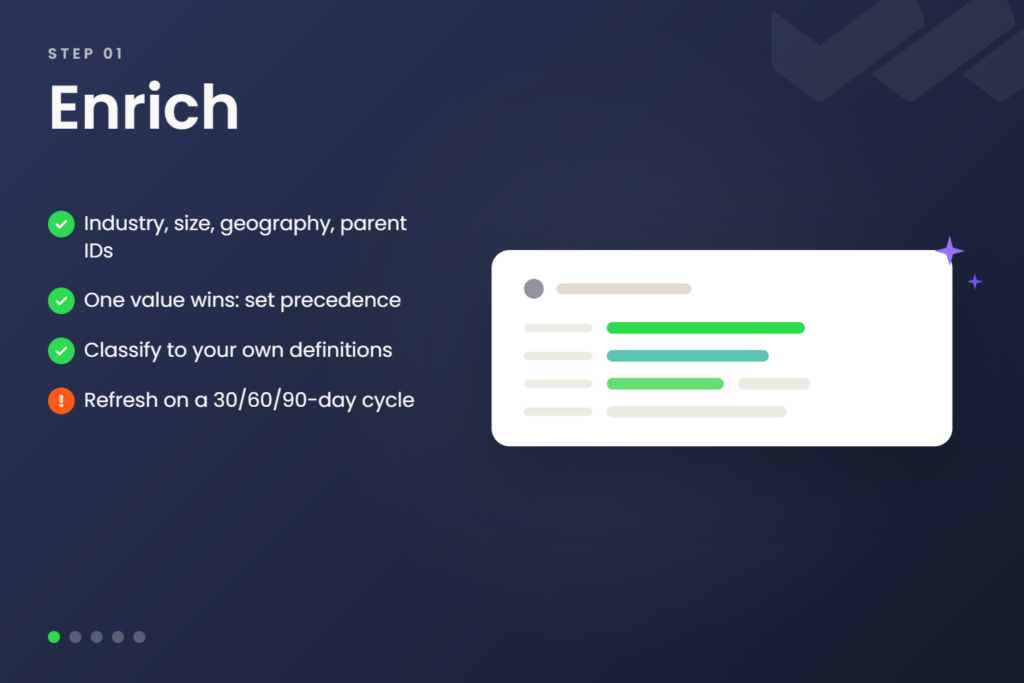
- Fill the fields everything downstream reads. Include industry, employee count, geography, and parent identifiers.
The domains and DUNS numbers filled here double as match keys in the next step, so enrich before you run a single matching rule. - Set precedence rules before anything reads the result. For example, Stripe could get tagged “financial services,” “payments,” and “data processing” by three different providers, and only one label can drive segmentation, routing, and reporting.
- Classify to your own definitions, not the provider’s. A label can be accurate and still useless for routing: “financial services” covers banks, insurers, and payments companies your team sells to differently.
- Schedule the refresh. Enriched values decay, so rerun account enrichment and hierarchy augmentation on a 30-, 60-, or 90-day cycle.
2. Match
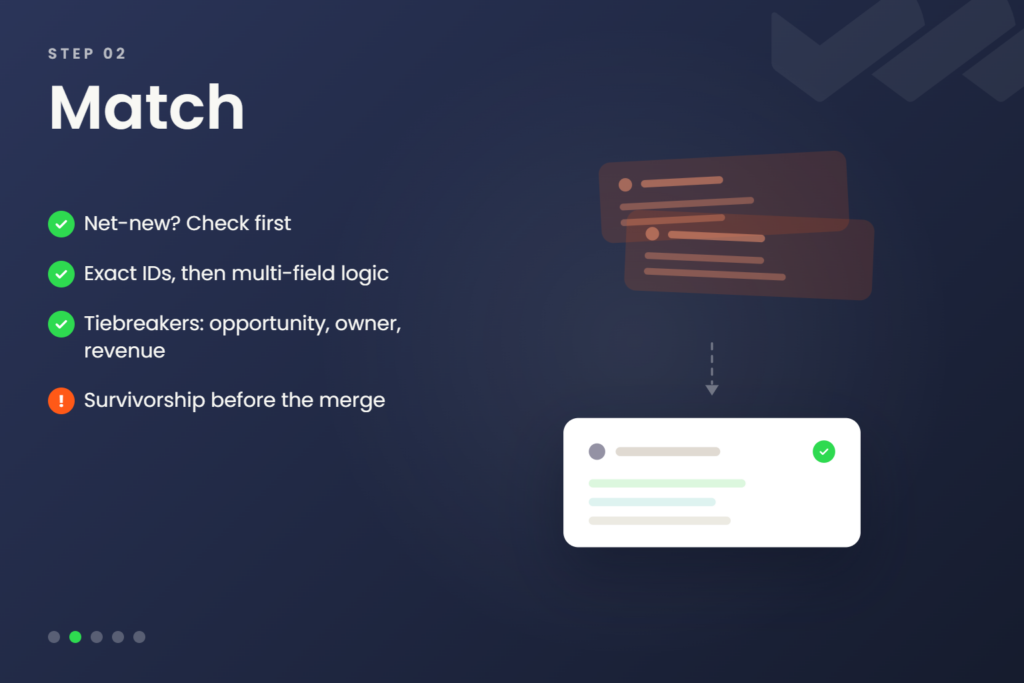
- The mass deduplication workflow above runs at this step. Duplicate Jobs produce the Duplicate Record Sets, and the merge wizard or Data Loader commits the merges.
Schedule the jobs to run after the enrichment pass, once the match keys are in place. - Enforce a matching sequence. Start every match by asking whether the record is truly net-new, then layer exact identifiers (email domain, DUNS) with multi-field matching (company name plus region) so subsidiary leads tie to both the local account and the global parent.
- Write tiebreaker rules for multiple hits. Favor the account with an active opportunity, a matching owner, or higher revenue, so the match lands on the record your reps actually work.
- Set survivorship before the merge starts. AT&T Inc., AT&T Corp, AT&T Mobility, ATT, and “AT and T” are one legal entity in five records, and which one survives shouldn’t depend on who runs the job.
3. Resolve the hierarchy
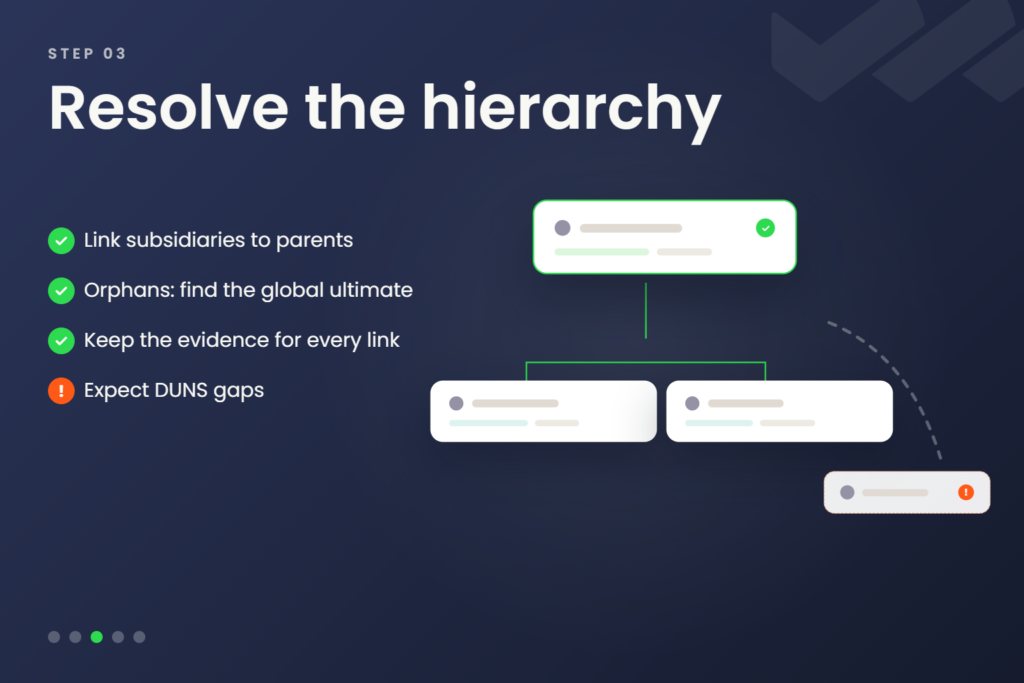
- Connect subsidiaries to parents on deduplicated accounts only. Salesforce merges re-parent the losing record’s child accounts to the survivor, so a tree built before dedupe gets rebuilt as soon as the merges commit.
For orphaned accounts, hunt the global ultimate parent with evidence from the open web instead of waiting on a provider refresh, and keep the source of each link. - Expect provider gaps. DUNS matching skips private and international entities.
4. Validate
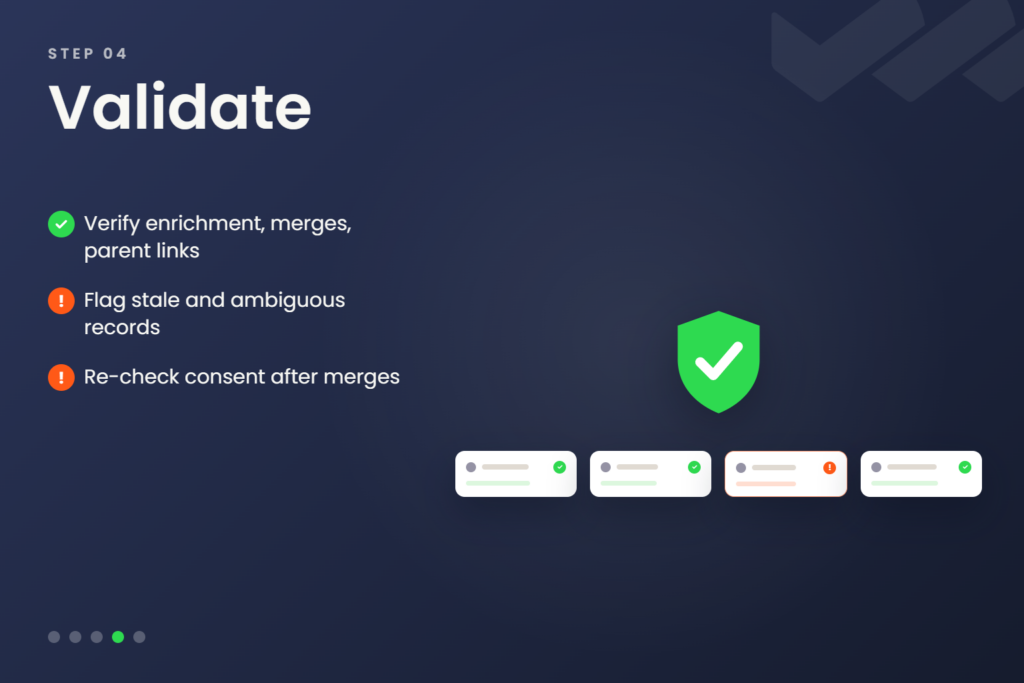
- Verify what the earlier steps wrote before anything routes on it. Check the enriched values, the merge survivors, and every new parent link.
Spot-check merge survivors against the survivorship rules from the match step. A wrong surviving value is a field edit now.
After assignment runs, the same fix will resolve routing and territory, too. - Flag what routing can’t act on. Identify stale records, ambiguous matches, incorrect operating parents.
- Re-check consent and Opt-Out fields after the merges since survivorship rules can overwrite them. Doing so ensures you stay compliant with CASL and anti-spam laws.
5. Assign
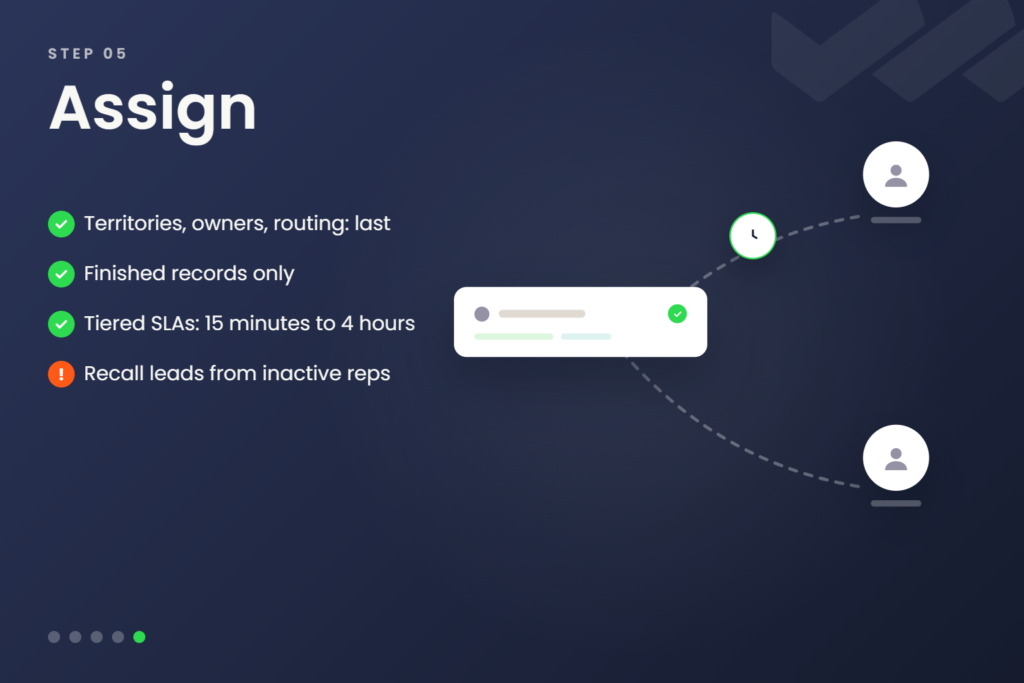
- Run territories, owners, and routing last, against finished records. If you run assignment early, the logic argues with itself: matching ties a new contact to its Fortune 500 parent while the territory rule sends the subsidiary to a mid-market rep.
- Tier the response once assignment is trustworthy. A strategic lead gets a 15-minute timer, a lower tier gets four hours, and fallback rules recall leads from reps who’ve gone inactive.
This cleansing sequence also loops.
Every enrichment refresh writes new values, and changed fields surface new match candidates, so the refresh cycle from step one sets the cadence for the whole run.
Between runs, the validation rules and duplicate matching from the proactive section hold what the cleanup fixed. The next reactive pass starts from a smaller backlog.
Put Salesforce Data Cleansing on Autopilot with Traction Complete
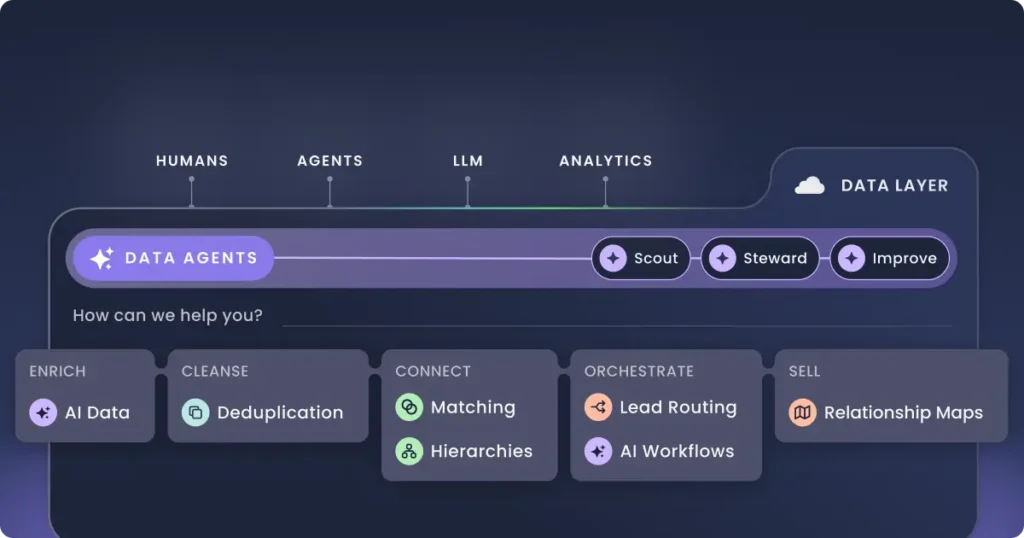
Salesforce data cleansing settles into three decisions: what you stop at the door, what you repair behind it, and what order the repairs run in.
Data quality erodes through manual entry errors, integration writes, and shifting processes, so those decisions repeat every quarter whether someone owns them or not.
Start with the field your routing and reporting rules read most. Put a validation rule on it, schedule a duplicate job behind it, and set survivorship rules for the merges. The step-by-step deduplication guide walks the same sequence at enterprise scale.
From there, expand field by field, knowing each field adds rules to write and merge queues to review.
Building the automation yourself carries its own record: not a single leader in the 2025 RevOps AI Leadership Survey rated their in-house AI build “extremely successful,” and half reported mixed results or outright frustration.
Traction Complete builds 100% Salesforce-native solutions for exactly this work, and built Data Agents for the point where the upkeep outgrows the team.
Stop Fixing Data. Start Trusting It.
Traction Complete keeps your Salesforce data reliable without spreadsheets, Data Loader jobs, or one-off cleanup projects. Our suite of tools and Data Agents continuously scan for duplicates across standard and custom objects, applies field-level rules to preserve accuracy, and cleans records at scale — all 100% inside Salesforce.
Give your team a CRM they can trust year-round, with clean data powering faster routing, better reporting, and confident decision-making.