

Native Salesforce roll-up summary fields solve basic math. They were never built to carry the weight of an enterprise revenue engine.
If the “Roll-Up Summary” field type is grayed out in your Object Manager, you’ve already hit the first wall.
Your objects are connected by a Lookup, not a Master-Detail, and native Salesforce won’t bridge that gap. Or you’ve hit the 40-field limit per object and there’s simply no room left.
Either way, it’s worth knowing exactly how native roll-ups work, where they run out of road, and why any-object rollups are how modern RevOps teams pick up where Salesforce leaves off.
What’s a Rollup Summary Field?
A rollup summary field is a native Salesforce tool that calculates values from related child records and displays the result on a parent record. Rollup summary fields give you insight into the total state of a relationship; like the combined value of won Opportunities on an Account; without manual calculation or reports.
Native Salesforce rollup summary fields support four calculation types:
- Count. Tallies the total number of related child records.
- Sum. Adds up a specific numeric field across all child records.
- Min. Pulls the lowest value from a specific field among child records.
- Max. Pulls the highest value from a specific field among child records.
How to Create a Rollup Summary Field in Salesforce
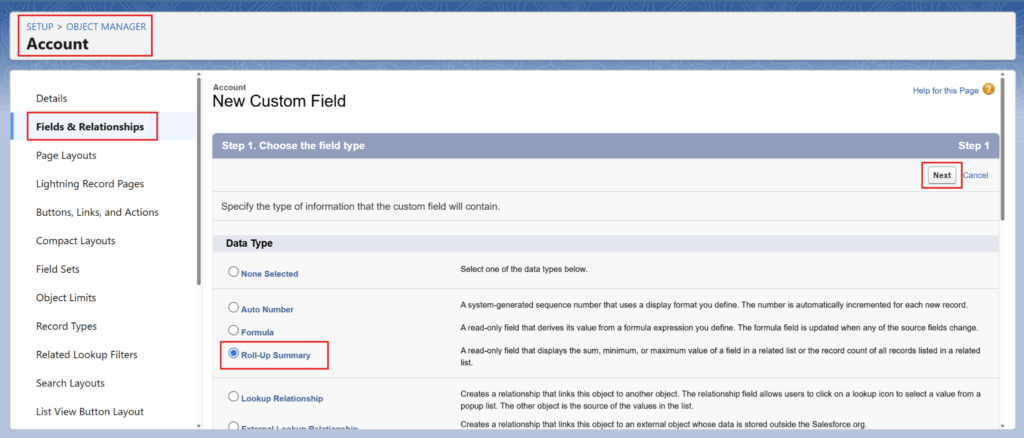
- Access Salesforce Setup by logging into your Salesforce organization and clicking the Gear Icon in the top-right corner, then select Setup.
- Select Object Manager, then select the master object you want the summary field to be displayed on. We’ll select “account” for our example.
- Select “Field & Relationships” from the sidebar, select “Roll-up Summary” as the data type, and click “Next.”
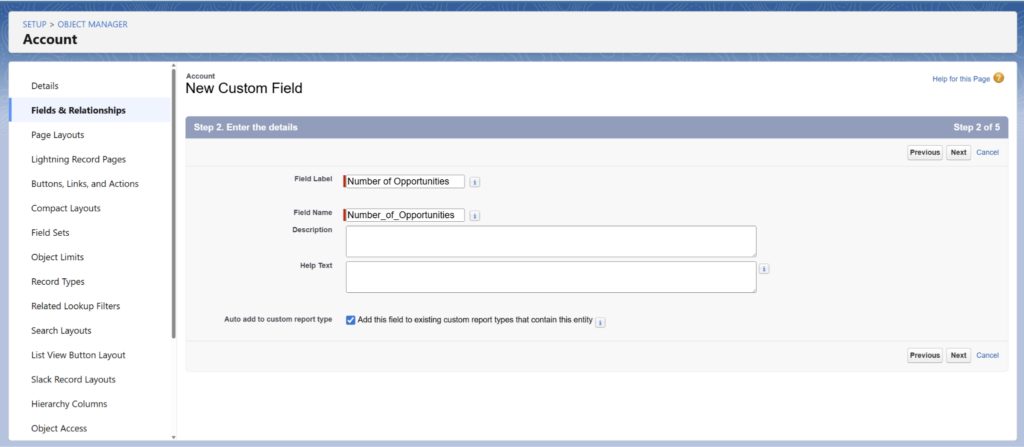
- Enter a label for the field, and select “Next,” when done.
For this example, we’re going to tally the number of opportunities on the account.
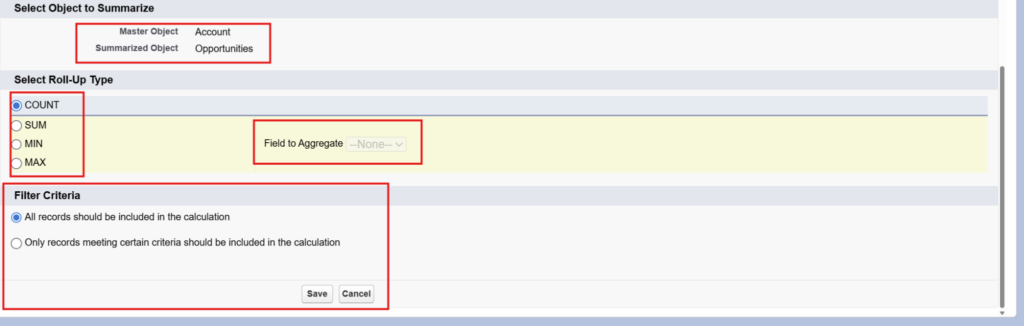
- Select the object you’d like to summarize in the “Summarized Object” drop down menu, and select what type of calculation you’d like to use.
If not COUNT, select which field should be aggregated.
Rollup summary fields can also include filter criteria to isolate specific signals.
For example, you might choose to roll up the total value of only Expansion type opportunities that’ve reached Closed Won to instantly distinguish between land and expand revenue.
You can also use a roll-up to Sum the amount of all open opportunities related to an account. Applying a filter to only include opportunities where the Stage is not Closed Won or Closed Lost lets you see that account’s total pipeline value at a glance. - Click “Next” when finished and save your changes.
3 Salesforce Rollup Summary Field Use Case Examples
Native roll-up summary fields are great when you need instant context without leaving the record. Here are three scenarios where they shine:
1. Spot churn risk
- Total Open Cases (Last 90 Days). A COUNT rollup on the Case object, filtered to cases where Status does not equal “Closed” and Created Date falls within the last 90 days.
- Last Closed Won Date. A MAX rollup on the Opportunity object, pulling the Close Date field filtered to Closed Won opportunities
- Total Closed Won Opportunities: A COUNT rollup on the Opportunity object, filtered to Closed Won, to track whether the account has ever expanded at all.
When you see high case volume, no expansion in over a year, and a declining closed won count on the same record, that’s a churn risk.
You can also roll up active Contacts to track whether your buying committee is shrinking. But since Contacts connect to Accounts via a Lookup relationship and not a Master-Detail, you can’t build this natively within Salesforce. We’ll explain how to bypass that shortly.
2. Understand deals before forecasting
Build these three rollup fields on your Opportunity object to understand what’s actually inside a deal before committing it to forecast:
- Total Products. A COUNT rollup on the OpportunityLineItem object, tallying all line items on the opportunity.
- Highest Value Line Item. A MAX rollup on the OpportunityLineItem object, pulling the TotalPrice field to surface the single most valuable product on the deal.
- Lowest Value Line Item. A MIN rollup on the OpportunityLineItem object, pulling the TotalPrice field to flag whether any low-value products are dragging down the deal.
A single-product deal at full price is a different forecast conversation than a ten-product deal where the highest and lowest line items are miles apart. Rolling these up lets your teams see the full picture whenever it’s pipeline review time.
You might also want to roll up line item data all the way to the Account level to spot whitespace. For example, summing total products sold across every Opportunity on an account.
Unfortunately, native rollup summary fields can only look one level down at a time. You can aggregate OpportunityLineItems up to Opportunity, or Opportunities up to Account, but not both in a single rollup.
Pro Tip: Audit Rollups Before Making Changes
Before deleting an existing rollup to make room for a new one, use the “Where is this used?” button in Salesforce Setup.
You might find that an inactive rollup is actually powering an old dashboard or a critical validation rule.
3. Identify stalled accounts
- Total Open Pipeline. A SUM rollup on the Opportunity object, pulling the Amount field and filtered to opportunities where Stage is not Closed Won or Closed Lost.
- Last Closed Won Date. A MAX rollup on the Opportunity object, pulling the Close Date field filtered to Closed Won opportunities.
An account with zero open pipeline and a last closed won date over 12 months ago is a re-engagement priority. Surface both fields in a list view and you can quickly triage the entire territory.
Ideally, you’d also roll up recent activity (tasks, calls, and emails) to understand whether your team is actually neglecting a stalled account or whether your team is active but the account just isn’t responding.
That distinction matters for your response.
But Salesforce Activities are designed to connect to multiple object types at once. So natively, you can’t achieve that with Salesforce rollups.
3 Native Salesforce Rollups Limitations Holding You Back
Native rollups work until your org outgrows them. Here are the three walls enterprise RevOps teams hit first.
1. Rollups require Master-Detail relationships
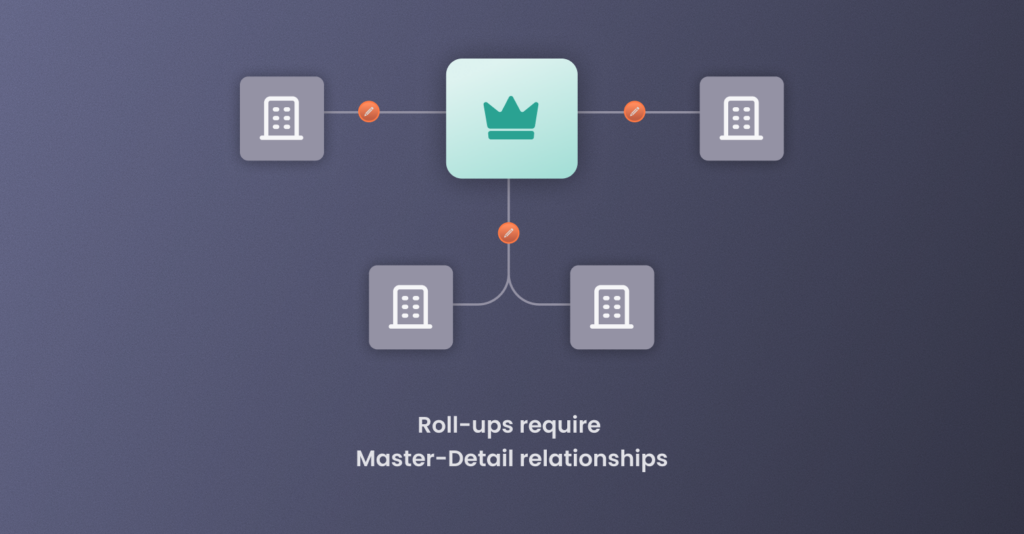
Salesforce rollups only work if you connect the two objects via a Master-Detail relationship.
A Master-Detail relationship gives Salesforce what it needs to trigger automatic recalculations but it comes with two big caveats:
- Child records must inherit the parent’s sharing settings
- Deleting a parent record automatically cascades down to delete all related children
That’s fine for simple, tightly coupled data like Opportunity Line Items, which only exist in the context of their parent Opportunity.
If you delete the Opportunity, you definitely want those line items deleted along with it, since the data is structurally inseparable.
But many enterprise GTM strategies rely on “independent data.”
Take Leads and Accounts, for example.
As an enterprise scales, you’d want to match leads to accounts to provide reps with better context.
But you would never want a Master-Detail relationship here because you wouldn’t want to delete a Fortune 500 Account record only to have Salesforce automatically delete 500 independent Leads along with it.
Instead, you’d establish the connection with a Lookup relationship.
But if that’s the case, you can’t build a native roll-up on the Account to count how many Leads are currently engaged from that company for effective account-based marketing (ABM).
You can try to force a Master-Detail relationship where a Lookup makes more sense, but doing so creates new risks.
First, you lose the ability to easily reparent records as companies reorganize, and second, you risk accidental data loss through cascading deletions.
2. Salesforce caps you at 40 rollup fields per object
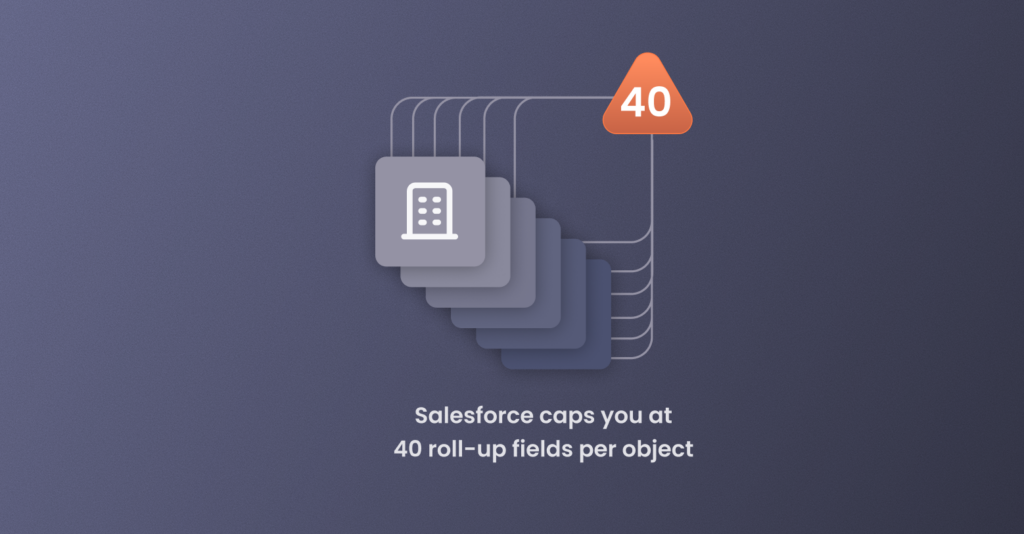
Even with perfectly structured Master-Detail relationships, you eventually hit a hard ceiling because Salesforce limits you to 40 rollup summary fields per object.
40 rollup summary fields per object sounds generous when you’re first architecting an org, but enterprise environments burn through that cap fast.
Start tracking total pipeline, Net Retention Rate (NRR) components, marketing engagement scores, and customer health metrics and you’ll be scratching your head deciding which rollup to cut in favor of adding another.
3. Native Salesforce rollups can’t see account hierarchies
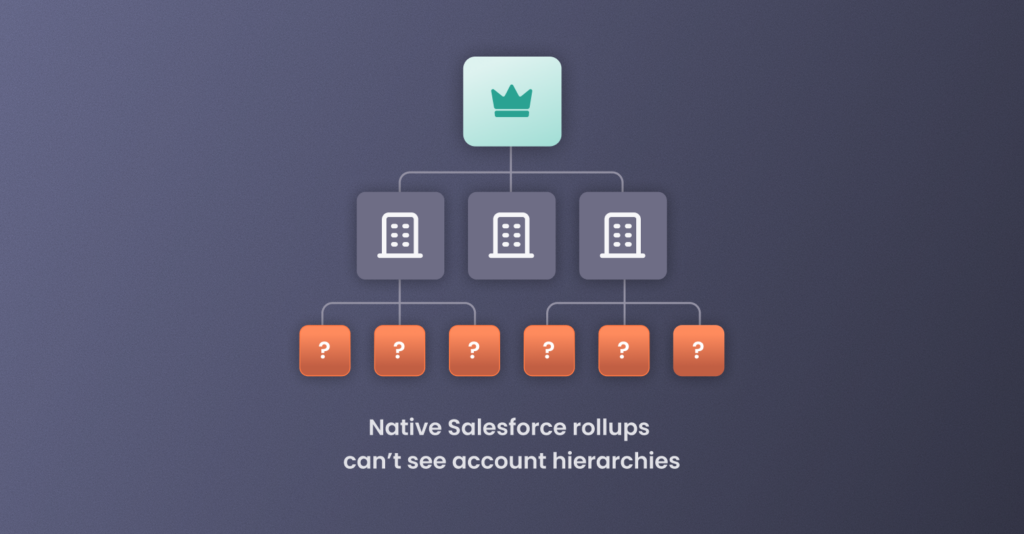
Salesforce’s native rollup summary fields can only look one level down your account hierarchies.
For a single Account with a handful of child records, that works fine.
But enterprise customers sprawl, with parent companies, regional subsidiaries, and recently acquired brands all nested under one roof. And a roll-up can only climb a hierarchy that exists: you must connect account hierarchy data inside Salesforce before you can aggregate up the tree.
But because native rollups cannot “see” across account hierarchies, you can’t conduct a complete Salesforce account hierarchy audit.
If you have a Global Ultimate Parent with 50 subsidiaries, a native roll-up summary field on that parent record will only show data from its immediate children. It completely ignores the activity, revenue, and churn risk happening down the tree.
What about expansion and whitespace?
If you want to identify cross-sell opportunities, you need to know which products are already owned across the entire account hierarchy.
With native Salesforce rollups, you might see that the immediate subsidiary doesn’t own “Product A,” while staying oblivious to the fact that four of its child companies already do.
You might think you can work around this by chain-linking rollups; rolling data from grandchild to child, then child to parent.
But remember that 40-field limit?
You’ll burn through that cap quickly, and the updates themselves will cascade so slowly that you’ll create data distortions.
Salesforce Flows for Rollups: The DIY Workaround and its Costs
When native roll-up summary fields fail, most Salesforce Admins pivot to Salesforce Flow. Unlike native fields, Flows don’t care about relationship type, letting you aggregate data across Lookup relationships.
But this doesn’t make Salesforce Flows a silver bullet.
Building a rollup engine in Salesforce Flows means building the triggers, the collection variables, the loops yourself. And the more logic you add, the more processing power each transaction demands, increasing your chances of getting an Apex CPU Time Limit error.
Flow also runs synchronously by default, which means you have to wait for the calculation to finish before doing anything else.
To recap the costs of a DIY Salesforce Flows approach to data rollups:
- System instability. Complex Flow logic consumes processing power fast, risking Apex CPU Time Limit errors.
- Logic that’s hard to audit and fix. Flow has no centralized rollup engine, scattering your logic across multiple triggers.
- Slow saves. Flows run synchronously so records won’t save until every calculation finishes. For sales reps, that’s extra wait time on every update.
- Stale data. Flows can time out without a dedicated batching service, leaving parent records with outdated totals that don’t accurately tally up child records.
Other Alternatives to Native Salesforce Rollup Summary Fields
Flow isn’t the only option. Two other tools are worth knowing about before you decide how to solve the rollup problem.
DLRS (Declarative Lookup Rollup Summaries)
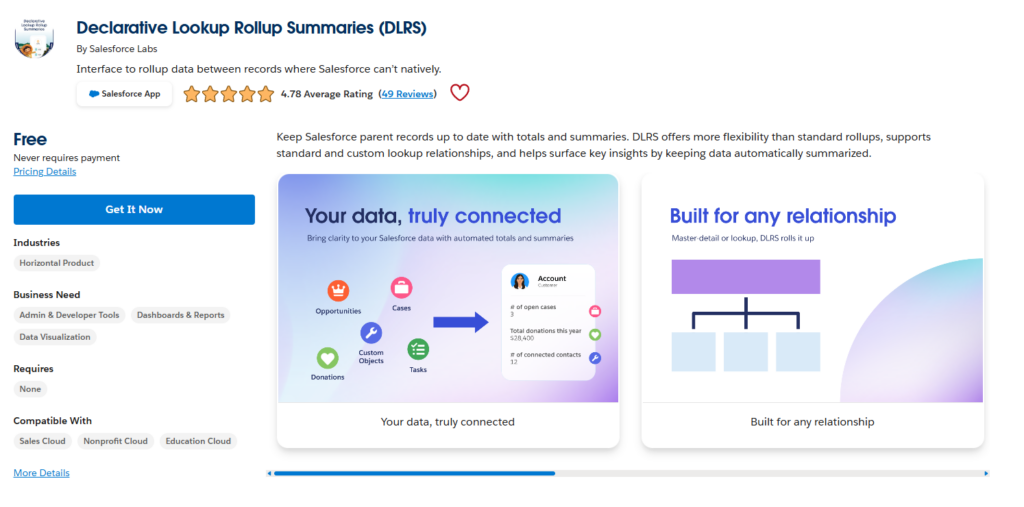
DLRS is a free, open-source managed package originally built by Andrew Fawcett and now maintained by the Salesforce.org Open Source Commons community. It lets you create rollup summary fields on Lookup relationships without writing code.
DLRS supports SUM, COUNT, MIN, MAX, AVG, and more. It has no cap on the number of rollups you can create. And because it’s free, it’s a popular first stop for admins who hit native limitations.
But here’s the trade-offs
- DLRS installs Apex triggers on your child objects, which can conflict with existing automation.
- In orgs with high data volumes, it can hit governor limits (especially the 50,000 SOQL query rows ceiling).
- And because it’s community-maintained, there’s no commercial support if something breaks during an upgrade.
Ultimately, if your rollup needs are limited to a handful of Lookup-based calculations and you’re okay with maintaining an open-source package, DLRS is a solid option.
Rollup Helper
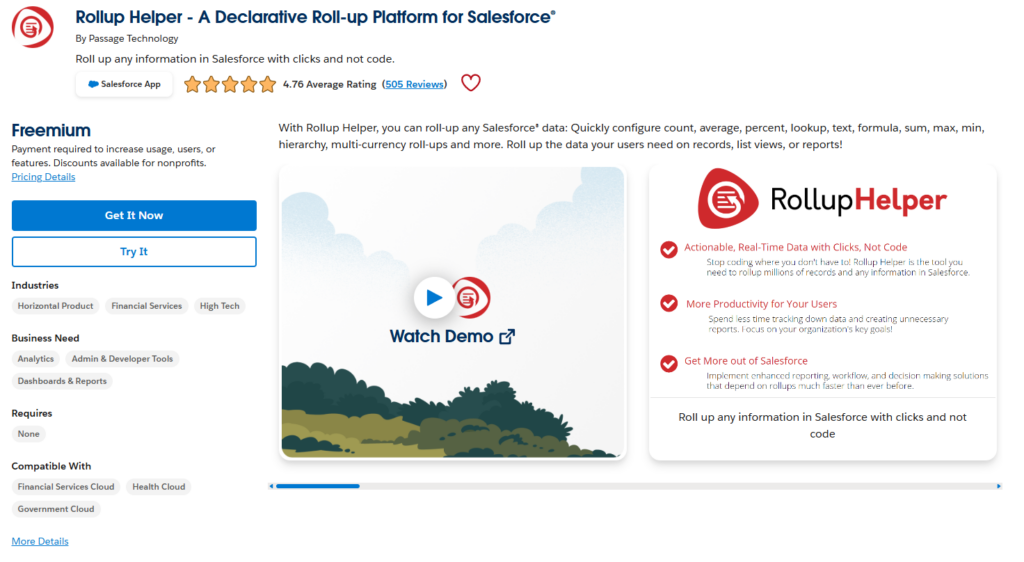
Rollup Helper is an app available on the AppExchange that supports rollups across both Master-Detail and Lookup relationships, with calculation types including COUNT, SUM, MIN, MAX, AVERAGE, and more.
The app works well for standard rollup scenarios, but enterprise orgs should know the constraints:
- The free tier caps you at 3 active rollups. Any enterprise RevOps team burns through that in the first sprint. Beyond 3, you need a paid tier.
- Hierarchy-level rollups are locked behind the Premium tier. Rollup Helper can do grandchild-level aggregation, but only on the highest-priced plan.
- Same governor limit exposure as DLRS. Large data volumes hit the same 50,000 SOQL query rows ceiling, which means scheduled rollups can fail without notice in high-volume orgs.
But where Rollup Helper and DLRS both really stop short are hierarchy-aware rollups.
A field-level tool can’t roll up revenue, pipeline, or customer health metrics across a full corporate hierarchy (parent → subsidiary → sub-subsidiary).
To do that, you need a solution that understands the relationships between accounts at every level.
That’s where Any-Object Rollups in Complete Hierarchies picks up.
Automating with Any-Object Rollups
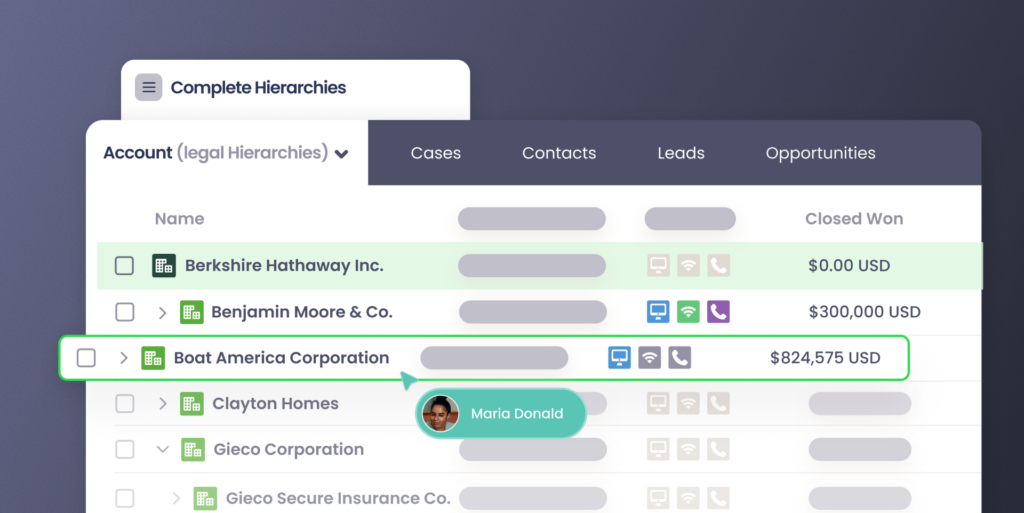
When you use Complete Hierarchies to automate and visualize your Salesforce account hierarchies, you get instant access to Any Object Rollups built directly inside.
Unlike DLRS or Rollup Helper, Any-Object Rollups don’t install triggers on your child objects. They run calculations in the background via scheduled batch jobs, so your team never waits for the math to finish and you never risk hitting CPU time limits during a save.
And because Any-Object Rollups sit inside Complete Hierarchies, they can do something no standalone rollup tool can: aggregate data across your entire account hierarchy, from global ultimate parent down through every subsidiary and sub-subsidiary.
What Any-Object Rollups do:
- Roll up across any relationship. Pick any standard or custom object as your destination and aggregate across Lookup relationships, even where native fields are grayed out.
- Keep your system fast. Background batch processing handles the heavy lifting.
- Filter for what matters. Set criteria to exclude irrelevant records so your totals only surface the revenue signals your team actually acts on.
How Any-Object Rollups Work with Traction Complete
Any-Object Rollups supports:
- Sum
- Count
- Count Unique
- Min
- Max
- Average
- Concatenate
- Date/Time
- Cross-object formulas
Any-Object Rollups work across standard and custom objects, Lookup and Master-Detail relationships, and hierarchy levels. There’s no cap on how many you can create.
Setting an Any-Object Rollup within Complete Hierarchies takes just five steps:
1. Choose your destination object. Open the Any Object Rollups tab in your Complete Hierarchies setup page and select the standard or custom object where the rollup results will live.
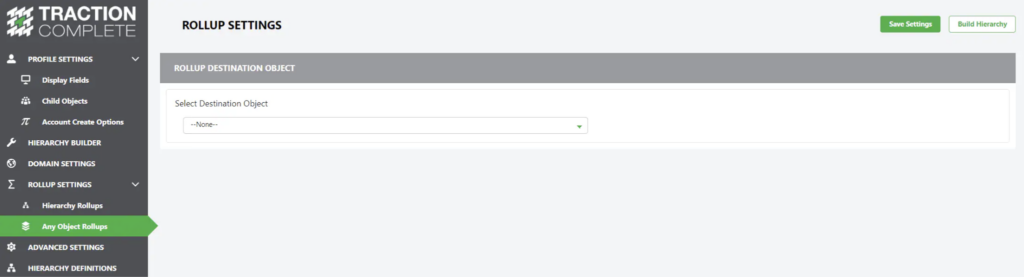
You can toggle between destination objects to manage multiple rollups from the same page.
2. Add and configure your rollup. Click “Add Rollup” to create a new one, or select an existing rollup to edit.
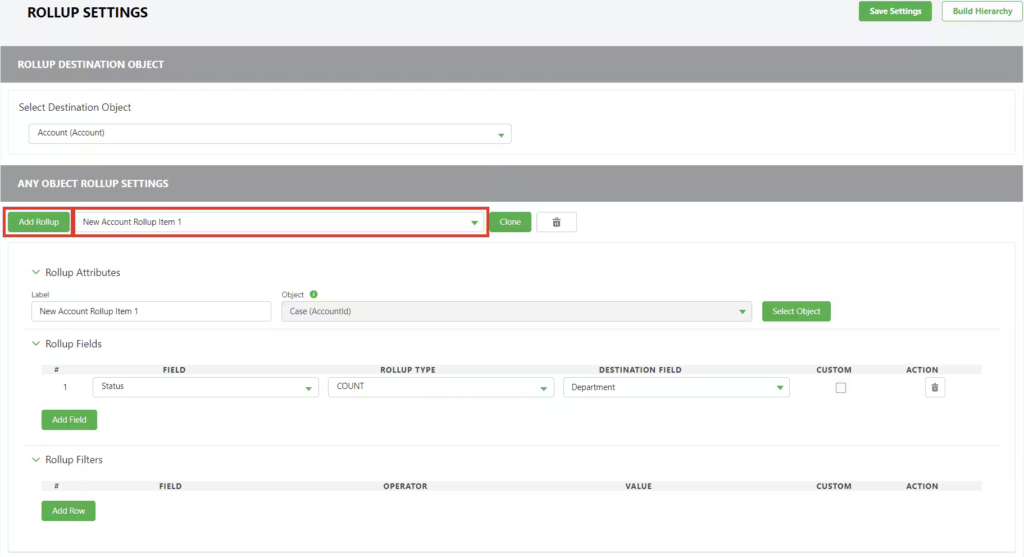
Name it, then define your rollup fields: pick the source field you want to aggregate, choose your rollup type, and map it to the destination field.
Need more than one calculation from the same source? Click “Add Field” to stack them.
3. Define your source object. Select the child object linked to your destination through a lookup field. If you need to go deeper, add a grandchild object (Level 3) to pull data from up to three levels down.
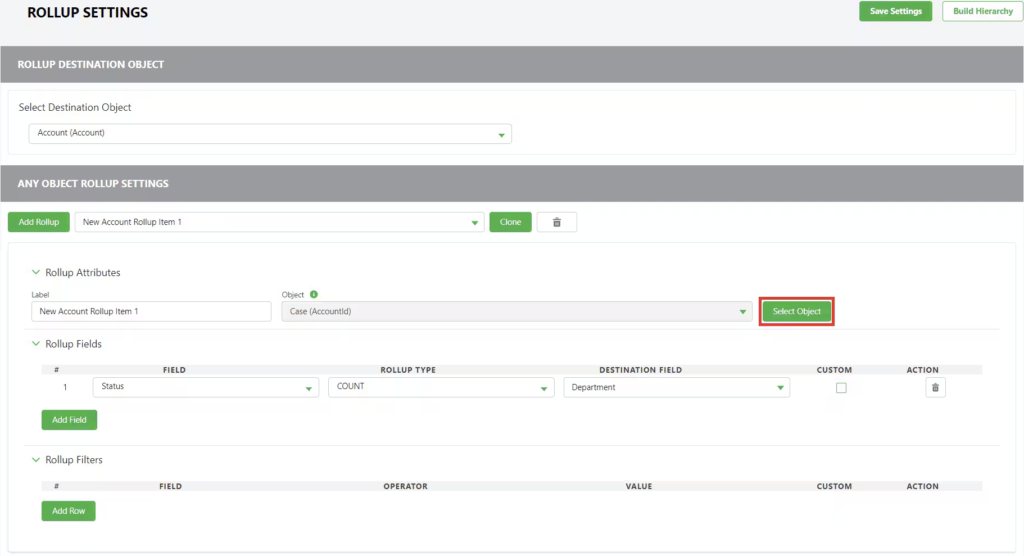
4. Apply rollup filters. Optionally add filter criteria to control exactly which source records get included in the calculation. Stack multiple filters and apply logic to get precise.
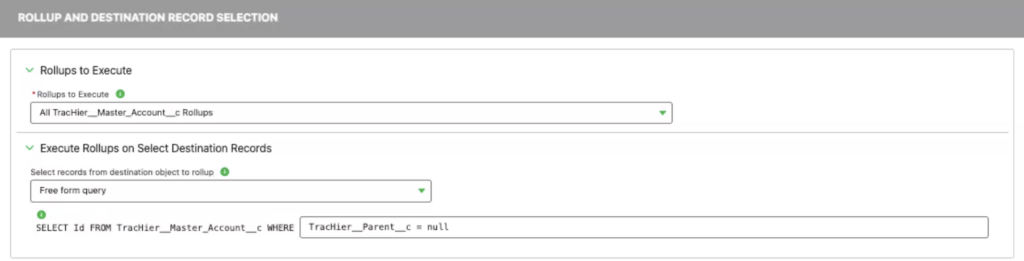
5. Choose your destination records. Decide whether to run the rollup across all destination records or target a specific subset using a free-form WHERE clause.
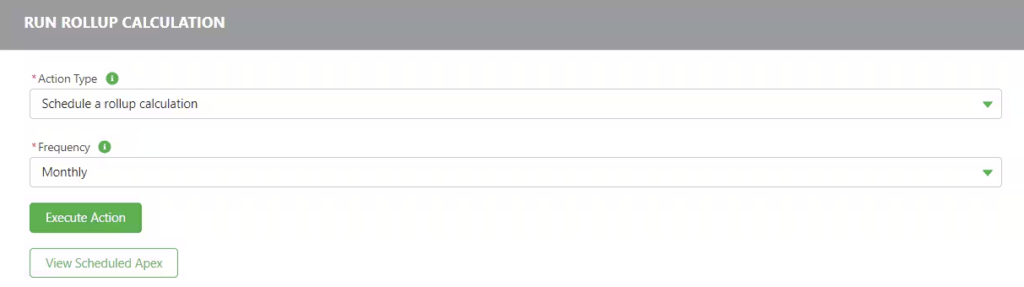
6. Execute immediately or on a schedule. You can choose to either execute immediately or schedule it to run daily, weekly, or monthly.
Once live, your rollup results feed directly into native Salesforce workflows, validation rules, and formula fields to power automated lead routing.
On-Demand Demo: Roll-Up Reporting in Complete Hierarchies
Still using spreadsheets to produce roll-up reports? See how to build them in minutes, right inside Salesforce. de Salesforce. You’ll learn how to:
• Skip the code and build roll-up reports across any object
• Track sales performance and monitor account health across a hierarchy
• Surface whitespace, cross-sell, and upsell opportunities
Watch the on-demand demo
Salesforce Rollup Use Cases Beyond Native Limitations
The native rollup examples above showed what you can build when the object relationships cooperate.
Here’s what’s possible when the Master-Detail requirement, the field cap, and the single-level hierarchy constraint are gone.
Revenue and pipeline across a corporate hierarchy
- Total ARR & ACV. Set the Account as your destination object. Use the hierarchy link in Complete Hierarchies to connect the global ultimate parent to every subsidiary.
- Pipeline coverage. Roll up Amount as a SUM from the Opportunity object, filtered to Closed Won, and you get total ARR for the entire corporate family on the parent record.
Add a second rollup: COUNT of Opportunities where Stage is not Closed Won or Closed Lost. That gives you open pipeline coverage across every subsidiary without building a single report.
NRR foundation. For net revenue retention (NRR), roll up both expansion and contraction revenue from the full hierarchy. Native rollups can only show you one account at a time. Any-Object Rollups show you the enterprise.
Churn risk across an account hierarchy
Earlier, we showed how to build a churn risk signal using native rollups on a single Account: open cases, last closed-won date, total expansions. But native rollups can only see the immediate account.
With Any-Object Rollups, roll up open Cases (COUNT, filtered to Status ≠ Closed) and Closed Lost Opportunities (COUNT) from every subsidiary to the parent.
If the parent record shows rising case volume and increasing losses across the hierarchy, your CS team knows before renewal conversations start.
Activity and buying committee coverage
Native rollups can’t touch Activities (Tasks, Events) because they connect to multiple object types. And Contacts connect to Accounts via Lookup, not Master-Detail, so native rollups can’t count them either.
Any-Object Rollups solve both.
Roll up Tasks and Events (COUNT) to the Account to see total touchpoints. Roll up Contacts (COUNT, filtered to active status) across the account hierarchy to see whether your buying committee coverage is growing or shrinking across the enterprise.
Whitespace and cross-sell across subsidiaries
Roll up OpportunityLineItems to the parent Account using the hierarchy link. Filter by Product Family and use COUNT UNIQUE to see which products are already owned across the hierarchy. The subsidiaries that don’t own a product their sister companies already use are your cross-sell targets.
Customer success and usage signals
Stay ahead of churn by monitoring relationship health in real time.
- Usage signals. Roll up active licenses, logins, or API calls to track product adoption across a hierarchy.
- Risk alerts. Aggregate open support cases and closed-lost opportunities to flag trouble at the parent level before it spreads.
- Expansion targeting. Flag high-usage subsidiaries that are ready for an upsell conversation.
Activity and engagement
Make sure your team is spending time in the right accounts.
- Touchpoint totals. Roll up tasks, meetings, and emails to understand true engagement levels.
- Buying group visibility. Count active Leads and Contacts across a corporate hierarchy so nobody falls through the cracks.
Pick the Right Rollup Approach for Your Org
Every Salesforce org eventually outgrows native rollup summary fields. The question is what to replace them with.
- If your rollup needs are simple and your objects already use Master-Detail relationships, native fields still work.
- If you need rollups across Lookup relationships and your data volume is manageable, DLRS is a strong free option.
- If your org needs to aggregate data across a full corporate hierarchy without installing triggers, hitting governor limits, or losing historical context, Complete Hierarchies and Any-Object Rollups are built for that.
Ready to take the next step? Here are some resources to get you started:
- Book a demo to see Any-Object Rollups configured for your specific use case
- Watch the on-demand demo to see roll-up reporting across a hierarchy in action