
An account hierarchy audit is a record-by-record comparison of the Parent Account links in your org against the real corporate family, run to find orphaned subsidiaries, duplicate accounts, and wrong parents.
And it starts with a fact Salesforce won’t tell you: a hierarchy can be completely wrong and still pass validation.
Validation rules confirm that a Parent Account lookup points to a real account record, but no rule counts how many accounts in a branch have no parent or compares how two sibling accounts got their parents.
In other words, your parent-child links can be syntactically perfect but strategically useless; like having a perfectly tuned clock but for the wrong timezone.
That’s because Salesforce has no field that stores what your account structure should look like.
Confirming a Salesforce account hierarchy means comparing what the org stores against how the companies are actually structured, and no rule in the org can run that comparison for you.
Why Audit an Account Hierarchy that Passes Validation?
Passing validation only proves the links resolve. Whether your account hierarchies actually describe the real corporate family is something you can’t figure out through rules alone, and three limitations baked into Salesforce keep it that way:
Validation rules only evaluate one row at a time, on specific records
A rule fires when a single record saves and reads fields on that record. A cross-object formula adds fields from a parent record, and no equivalent reference exists for child records. Validation formulas have no aggregate functions, either.
But a hierarchy question is always an aggregate question.
Counting the accounts in a branch that carry no parent takes a query across records. And comparing how two subsidiaries of one company got parented takes another query.
Neither fits in a validation rule that only fires on one record at a time.
Another problem is that validation rules also only evaluate records that save.
Any new rules you add won’t touch the records you have tucked away deep in your metaphorical data closet.
Existing accounts keep their parent links until something edits them, and a new rule never re-checks them retroactively. Passing validation describes only the records that saved after the rule existed.
Salesforce’s other account hierarchy limitations work the same way. The relationship displays on the record page, and the automation that needs it unfortunately can’t read it.
A wrong parent keeps producing totals
Parent Account is a lookup, and Salesforce supports roll-up summary fields only on master-detail relationships. So hierarchy totals come from Apex, a declarative roll-up tool, or a managed package that reads the parent links on a schedule.
The problem is that those jobs rerun on a schedule whether the links are right or not.
So if one misparented subsidiary rolls its pipeline into the wrong corporate total, that error flows downstream into your account planning as an inflated parent and a hollow subsidiary.
If you’re building territory logic off of ultimate parent accounts, it’s highly likely you’ll run into territory and comp disputes, too. The rep who owns the parent picks up the subsidiary, whether or not it matches the coverage model.
Nothing in Salesforce records why a parent changed
A data load sets Parent Account only when the import file includes a Parent Account column, and the value in that column has to be the Salesforce ID or External ID of a parent that already exists in the org.
An acquired company’s account export has neither, so those records insert as top-level accounts. Their pipeline stays out of the parent’s roll-up totals, and territory rules keyed on the parent don’t evaluate them.
Then, when you’re merging records for an M&A or acquisition, the operation actually deletes the duplicate records and reparents their related records onto the surviving account. So if you’re running the merge, you also have to pick which record survives on each conflicting field; and the Parent Account is one of those fields.
The Parent Account is also an ordinary editable field.
Anyone with edit access on accounts can reparent a record, with the field history storing the old and new values with no reason attached.
Field history tells you that a parent changed. Figuring out whether the new parent is right takes a comparison against a source outside Salesforce
The Five Account Hierarchy Audit Checks
The five checks below cover orphaned children, flat duplicates, duplicate branches, structures that contradict the corporate family, and ownership hanging off the wrong parent.
1. Orphaned children
List imports and lead conversion create orphans by the thousands: nothing populates ParentId on the way in, so subsidiaries enter the org as standalone companies.
What compounds the confusion is that a blank Parent Account is correct on a real standalone company and wrong on a subsidiary. And the field can’t tell you which one you’re looking at.
And stranded subsidiaries disappear twice.
Salesforce’s hierarchy view renders only linked records, so an orphan never shows under the family it belongs to, and its pipeline stays out of every total above it.
Orphaned children are also how net revenue retention (NRR) reads a renewal plus a new subsidiary as false churn: one loss and one win booked on the same family.
These aren’t edge cases.
At Zoom, the version of this problem was enterprise-scale:
We have very complex and large hierarchy structures.
Heidi Davis, Manager of Sales Operations and Global Data at Zoom
That made it difficult for our sales team to understand what a company structure looks like, how to approach them to create a relationship, or how to cultivate an existing one.
Partial orphans count, too.
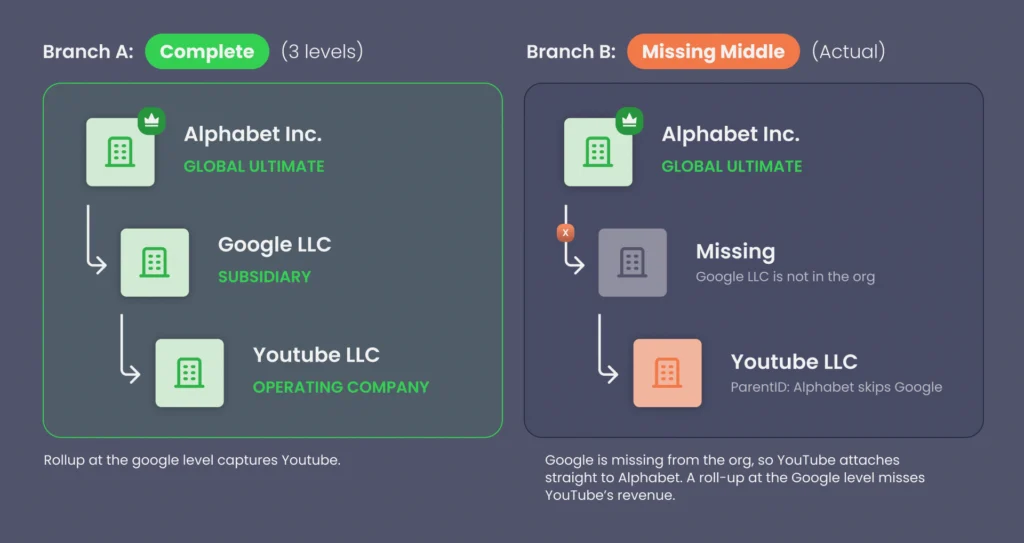
An account can sit under the right global ultimate and still be in the wrong place: where the middle of the tree is missing, a subsidiary attaches straight to the top, and division-level roll-ups report parent-level revenue.
So when you’re checking for orphans and missing links, count the levels per branch — not just whether a parent exists.
2. Flat duplicates
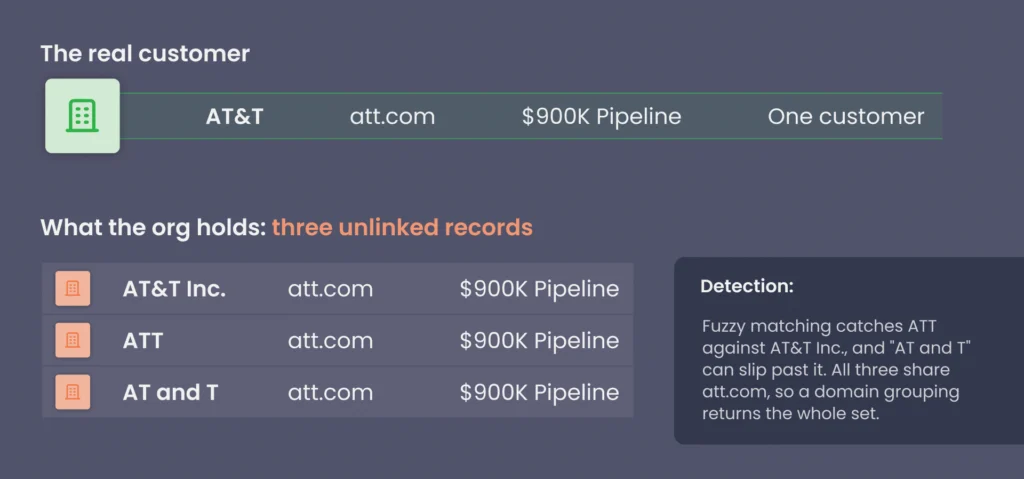
Web forms and list imports that match on nothing stricter than an exact name breed flat duplicates: several accounts for one company, none linked by Parent Account.
Flat duplicates undercount the relationship everywhere you measure them because each holds its own slice of the pipeline, contacts, and activity history.
Account planning sees three mid-size customers instead of one large one, and territory rules treat each record as its own book of business. One manufacturer we worked with carried 11,000 account-name variants that were really 250 companies.
Finding flat duplicates by name only gets you so far.
Fuzzy matching catches spelling variants, like HULU against Hulu, LLC, but it has nothing to compare when the same company sits under genuinely different names: the legal name on one record, the brand name on another, an acquired company’s former name on a third.
But domain and address don’t care what the record is named.
So to catch flat duplicates, group unparented accounts by website domain or billing address: more than one unlinked account on a single domain belongs on your fix list.
3. Duplicate branches
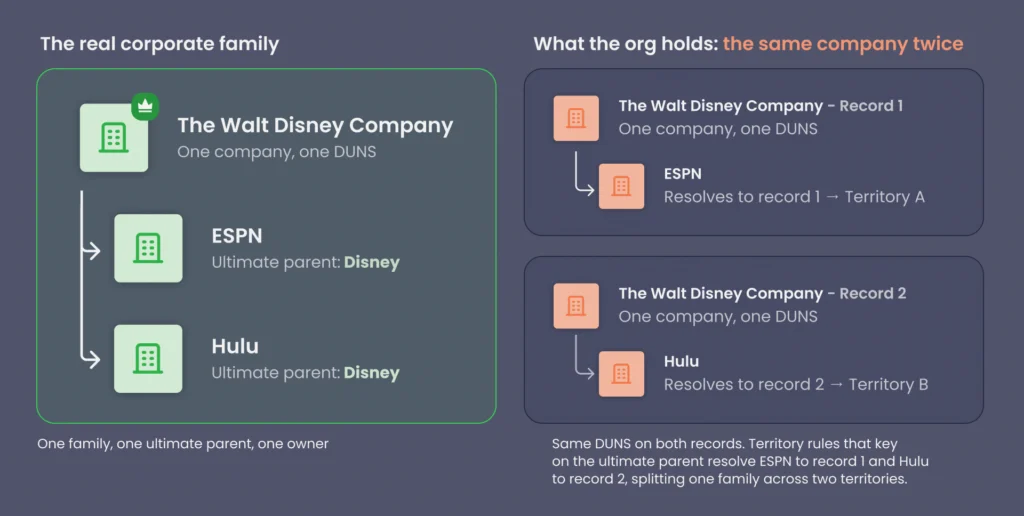
Dirty data at the parent level rebuilds one company as two trees: one under the legal name and one under the brand name.
Each branch rolls up its own total, and each can carry its own ultimate parent.
Every child parented afterward lands in one branch or the other. These show up most where one company is both a direct customer and an indirect one through a partner.
At an enterprise software company we worked with, those hybrid accounts landed as two records under two parents, each half right.
So to find them, pull every parentless account with its children inline, sorted by domain, using this SOQL query:
| SELECT Name, Website, (SELECT Name FROM ChildAccounts) FROM Account WHERE ParentId = null AND Website != null ORDER BY Website |
Records sharing a Website value are one company holding multiple tops. If the copies return no children, that’s a flat duplicate. If accounts sit parented under both copies, that’s a split tree.
That’s why checking the top of the corporate family tree is just as important as the branches.
When several accounts carry the same DUNS value, and that value also serves as the domestic ultimate parent (the ultimate parent for accounts registered in that country), multiple records resolve to the top of one family.
Merging the two tops is the quickest fix. The merge operation makes the survivor the new parent of the losing record’s child accounts, folding both branches into one tree.
If the two records sit in the same branch, one above the other, Salesforce rejects the merge, because the result would make an account its own ancestor.
But two things before you merge:
- Decide up front which record’s Parent Account and DUNS should survive. The merge wizard picks the winning value field by field while an API merge takes the survivor’s values, blanks included.
- Understand the constraints. Lightning merges three records at a time, and the pair has to surface as potential duplicates first, so tops with matching DUNS but different names may need a permissive matching rule or an API merge.
4. Structures that contradict the corporate family
What happens when every link resolves, but you still disagree with how the company is actually organized?
M&As cause most of these: the corporate family changed shape, but your org kept the old value.
But before you call anything wrong, decide which hierarchy you’re actually auditing.
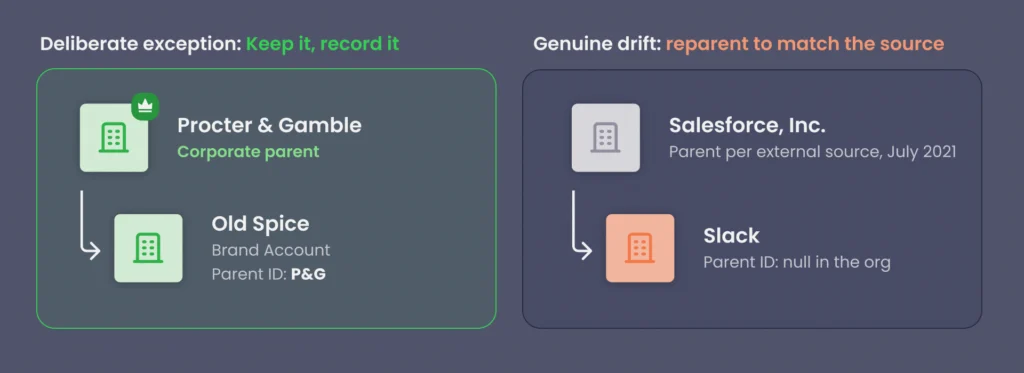
D&B family trees describe legal ownership structures, but account hierarchies that drive your territories might follow brands, divisions, or regions.
The core problem here is that typically, one Account object carries both.
Take Old Spice under Procter & Gamble as a practical example: the Old Spice brand is not a legal entity, so a legal family tree has no node for it. But the account sits directly under P&G because that’s how your team sells it.
Record these deliberate exceptions first, and document why for posterity. Everything else you find beyond these deliberate exceptions is drift.
You might have a subsidiary under a parent that divested it years ago, or missed an acquisition that the corporate family completed.
Oftentimes, data providers have not published the change yet either, since acquisitions can take months to clear legal and propagate through their databases.
To fix drift, set the drifted branch top’s Parent Account to the parent the external source shows, or use account hierarchy tools that let you build and hold multiple hierarchy views over the same accounts.
Children keep pointing at their own top account, so that single edit reconnects the whole subtree. A divestiture takes one edit too: set the divested subsidiary’s Parent Account to its new parent company, or clear it if the company now stands alone.
5. Ownership and territory hanging off the wrong parent
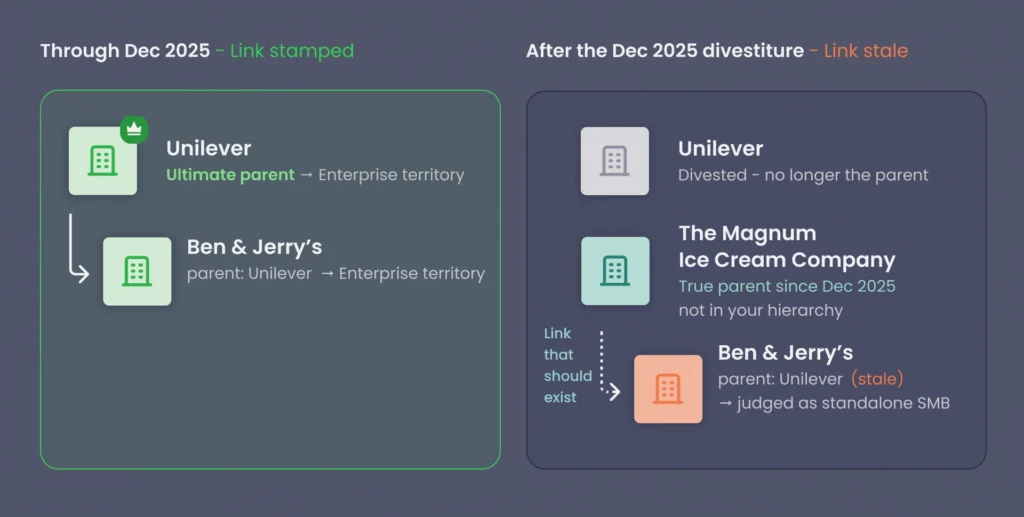
A wrong parent link doesn’t stay a reporting problem. In orgs that carve territories by corporate family, the parent chain decides which team works each account, and a wrong link puts the wrong team on the account.
Ben & Jerry’s is the live example.
Through 2025 it sat under Unilever, and the parent link fed the stamped family key that put it in enterprise coverage.
Then Unilever spun its ice cream, Ben & Jerry’s, Magnum, and Wall’s, into the Magnum Ice Cream Company in December 2025.
So until you refresh the hierarchy, Ben & Jerry’s family key will keep pointing it at a parent that no longer owns the account. And territory rules will file an enterprise subsidiary under SMB coverage, or leave it unassigned.
So the hierarchy audit here is a simple comparison: list the accounts whose territory or owner disagrees with their ultimate parent’s.
Some mismatches are intentional, like a strategic account handed to a named-accounts team regardless of family, and should be logged as exceptions. The rest are assignments inherited from links that haven’t been checked against an external source.
Running the Audit with Native Salesforce Reports and SOQL
Account hierarchy audit steps one, two, and five run on tools already in your org: standard Account reports and a few SOQL queries in Developer Console or Workbench.
- Orphans. A report on Accounts where Parent Account is blank, cross-referenced against subsidiary signals. Recipe below.
- Flat duplicates. A domain-grouping SOQL query below.
- Ownership mismatches. An Accounts report grouped by Parent Account with Account Owner shown, to spot owners that do not match their branch.
How to find orphaned accounts in Salesforce
An orphaned account is a subsidiary carrying a blank Parent Account field, so Salesforce treats it as a standalone company.
To find yours, start with a report on Accounts where Parent Account equals blank, then cross-reference subsidiary signals:
- Matching website domains
- Matching billing addresses
- Shared naming patterns
A blank parent field on a standalone small business is correct. The same blank field on an account sharing a domain with three others is an orphan.
The SOQL version finds domain clusters directly:
| SELECT Website, COUNT(Id) FROM Account WHERE ParentId = null AND Website != null GROUP BY Website HAVING COUNT(Id) > 1 |
Website values may vary in format, with www prefixes and trailing paths splitting what should be one group. Before you trust the count, normalize domains in a spreadsheet after export.
How to Identify the Ultimate Parent Account in Salesforce
Salesforce has no native ultimate parent account field. The usual workaround is an ultimate parent formula field: a text formula field on Account that returns the name at the top of the chain, hard-coded to a fixed depth:
| BLANKVALUE(Parent.Parent.Parent.Name, BLANKVALUE(Parent.Parent.Name, BLANKVALUE(Parent.Name, Name))) |
Each BLANKVALUE falls through to the next reference when the deeper one is empty, so the formula returns the highest populated ancestor. This version reads three parents up.
But native tooling is limited in scope:
- The formula depth is capped. Cross-object formulas reference fields at most 10 relationships away, and the formula resolves only as deep as you wrote it, so a tree deeper than the hard-coded depth reports a middle tier as the top.
- The hierarchy view caps at 2,000 accounts. The Lightning hierarchy view displays up to 2,000 accounts from wherever you enter it, sorted by name.
- SOQL stops at five levels. A single query follows Parent relationships at most five levels up, so anything deeper means stitching exports together.
- Bulk rebuilds hit governor limits. A job that touches tens of thousands of records in one run trips Salesforce governor limits.
That’s why the above formula only holds for shallow, stable account hierarchies.
Deep or fast-changing trees need a stored global ultimate field that something keeps current, which is the job purpose-built account hierarchy software takes over.
Verifying Account Hierarchy Structure Against External Corporate Data
Audit steps three and four compare your org against the real corporate family, and the reference for that comparison has to come from outside Salesforce:
- Dun & Bradstreet (D&B) family trees and D-U-N-S linkage are the oldest reference set
- ZoomInfo carries corporate hierarchy data alongside its contact records
- Other data providers may resolve entities and write parent relationships into Salesforce directly
All three sell account hierarchy data: parent values, identifiers, family-tree records.
A provider can write parent values into your org and leave audit steps three and four open. Written values only count as verified once you compare the structure they produce against the family they claim to describe.
And the external corporate reference data has its own limits:
- Brands aren’t legal entities. A subsidiary trading under a brand name, like Pampers inside Procter & Gamble, has no registry node of its own, so it returns no match and stays parentless after the sync completes.
- Private and international entities can sit outside the registry. Identifier matching only places what’s registered, so Private and international entities don’t get matched.
- Hand-typed identifiers go stale. Nothing refreshes a DUNS value typed in during an earlier cleanup, and the next match run rebuilds the tree on a relationship that may have ended years ago.
- Identifiers outlive relationships. Check an identifier’s age and source before letting the registry overrule the org.
eBay owned PayPal until the 2015 spinoff, and a linkage captured before then will still parent PayPal under eBay.
So to verify your account hierarchies against data provider structures, pull your chosen provider’s tree for your top revenue families, check your Parent Account chain across the same accounts, and log the mismatches. Discrepancies mean either your org is wrong, or the reference is.
In our conversations, the teams that need this comparison most grew through acquisition: each deal imports another company’s account list with its own parents, duplicates, and gaps.
How Often Should Account Hierarchies Be Audited?
Audit the full hierarchy at least once a year before territory planning, run a weekly pass wherever list imports are continuous, and rerun the affected branch the week a deal is announced or after any provider sync.
| How often | What to run | Why then |
|---|---|---|
| At least once a year |
|
|
| Weekly, where imports are continuous |
|
|
| The week a deal is announced |
|
|
| After every provider sync |
|
|
At least once a year, before territory planning
Our recommended once-a-year full audit minimum comes from territory planning.
The planning cycle typically starts with an export of account and hierarchy data, and the plan is built on that copy. Whatever’s wrong with your export will carry over into your territory planning.
A subsidiary missing its parent at export time? It’d likely sit there until the next cycle, a year later.
One enterprise software team we worked with ran their annual total addressable market (TAM) process exactly this way: freeze ZoomInfo and D&B data once a year, then build every assignment from the frozen copy.
But by the next freeze, a year of acquisitions, imports, and provider syncs had piled up, and their territory plan didn’t address any of them.
At another enterprise we met, hierarchy visibility had been raised to the CRO, and the rebuild went on the calendar as a fiscal-year priority. But auditing only when planning forces it means a link broken in March waits until the next cycle.
That’s why we recommend the full annual hierarchy audit cadence as a floor.
Ideally, you’d shrink what the annual pass has to find by running smaller but more frequent hierarchy checks.
One customer team we support put hierarchy correction processes in place that run between audits, and their working cadence stepped down from weekly sessions to a monthly check as findings dropped.
Before your territory planning export:
- Run the full audit. But give yourself enough lead time for the fixes to land.
- Merge duplicates first. Merging deletes the losing records; run merges after the export and the plan points at accounts that no longer exist.
- Bring the exception log. Keep the intentional mismatches from the ownership check out of the findings.
Weekly, where list imports are continuous
We recommend a weekly pass wherever new records arrive continuously.
New accounts enter the org through list imports, web forms, and lead conversion. But none of these sets a Parent Account, and a converting lead that doesn’t match an existing account becomes a new one built from its Company field.
So what you get are a bunch of subsidiaries that arrive looking like standalone companies with every import.
Duplicates accumulate the same way. Matching on exact account name means every spelling variant saves as a new record.
Proactive Salesforce data cleansing at import helps, but only with duplicates.
Duplicate rules and standardized names catch the spelling variants before they save, though Data Loader jobs can be set to bypass those rules.
Orphans are a different problem altogether: the parent link comes from matching the account to its corporate family, and the import file doesn’t contain that information.
So your weekly pass is two quick checks:
- Subscribe to the blank-parent report. Set it to your import schedule and compare each week’s count against the orphan baseline you exported during your first full audit.
A rising count means intake is creating orphans faster than the fixes clear them. - Group unparented accounts by website domain. Catching a duplicate the week it forms means merging it before opportunities and contacts pile onto both copies.
The week a deal is announced
We recommend a partial rerun the week a deal is announced, on either side of your business: yours or a customer’s.
When your company acquires, the acquired book arrives as a data load with no valid parent IDs. Every account in it loads at the top level, unparented.
One enterprise team we met was folding an acquired company’s entire Salesforce org into their own against a fiscal-year deadline. But an entire book landing at once means orphans, duplicates, and split trees arriving in bulk.
When a customer acquires, reps meet the new structure in contracts months before a provider publishes it. But waiting for the provider update means auditing months late.
Divestitures trigger the same audit. When a company sells off part of its business, every account in the sold-off group still points at the old parent. Edit the Parent Account on the highest account in that group, and everything beneath it follows.
Your first pass after a close starts with what changed hands:
- List the acquired entity’s accounts. Map which records belong to it and where they now attach.
- Merge the overlapping customers before any reparenting. This merge decides which record survives and actually moves the children.
- Route what reps find through the change-request intake. RevOps validates before anything writes.
After every provider sync
The last trigger is the provider itself: a sync can change parents without your approval or involvement.
Speaking anecdotally, one customer team told us they saw DUNS value flip during a routine refresh: an international subsidiary re-matched to its US parent, while identifiers their provider had dropped stayed populated inside their org.
A re-match like that moves the subsidiary into the US family, where roll-ups and territory rules follow it. And the stale identifiers will keep rebuilding that same outdated relationship.
Sync changes also reach past parent values. One admin team told us they had to rebuild their roll-up settings after their provider deprecated the revenue field those roll-ups read.
A deprecated field stays on the object and roll-ups keep reading it; the totals still calculate, but the numbers underneath them stop updating.
After each sync window, we recommend you:
- Rerun the duplicate-branch and contradicted-structure checks. Trail the provider’s window; a rerun placed by calendar month can land the day before the next sync rewrites the tree.
- Put Parent Account and the identifier fields on field history tracking. Salesforce tracks up to 20 fields per object, and each rewrite shows up in a field history report.
- Scan the provider’s release notes. Watch for deprecations and matching changes to stay ahead of syncs that rewrite your account hierarchies and which fields to stop building on.
Auditing Account Hierarchies at Enterprise Scale with Traction Complete
Manual auditing holds up in a small org. At enterprise account volumes, with corporate families restructuring through the year, checking and linking records one at a time stops fitting inside anyone’s calendar.
The Institute for Mergers, Acquisitions and Alliances counts more than 790,000 M&A transactions announced worldwide since 2000, and each one restructured a corporate family.
Windstream (now Kinetic) faced the volume end of this:
We had over 4 million customer records, and no way to accurately organize accounts or group service locations together.
Scott Ellsworth, VP of Sales Operations at Windstream
Complete Hierarchies runs the audit as a system, and the workflow comes out of more than 200 customer deployments and 1.4 million hours of Salesforce consulting.
Build the full corporate family automatically
Complete Hierarchies is data agnostic: pair it with any provider that supplies identifiers and relationship data, like D&B and ZoomInfo. And it links parent-child accounts, merges duplicates on the way in, and updates the structure when companies change.
Complete Hierarchies also builds where native Salesforce stops: a hierarchy can include parent accounts that don’t exist in your org yet, and the whitespace view surfaces those missing accounts for a one-click add (D&B-sourced).
Four ways to key a hierarchy
Complete Hierarchies runs on the fields your org already uses and trusts:
| Hierarchy type | What Complete Hierarchy builds from |
|---|---|
| Custom | A unique ID, Parent ID, and Global Ultimate Parent ID on each account |
| List | A domain field that groups every account sharing the same domain |
| Native | The Parent Account field already in your org |
| Connect | Parent Account, Global Ultimate, and custom identifier fields together |
Verify, add, and override every link
Open a suggested link in the review report inside Complete Hierarchies and the evidence is on the row: the proposed parent, a confidence score, the reasoning, and the source behind it.
High-confidence changes can write automatically, lower ones route to a review queue, or nothing writes without sign-off.
For manual restructures, the drag-and-drop builder in Complete Hierarchies lets you quickly rearrange and shuffle branches, and multi-hierarchy views help you keep the legal, GTM, and partner hierarchies separate.
You have full control over what writes to your account records. And with Complete Hierarchies logging every approval and rejection, you’ll always have an audit trail to fall back on for day-to-day maintenance. This log doubles as the audit side of data stewardship, the gate you approve before automation controls on low-risk fields.
Stephen Daniels, Senior Director of Revenue Operations at Cresta, hit the missing-parent and orphaned children problem during a territory overhaul and solved it with Complete Hierarchies in one motion:
Sometimes you have subsidiaries but you don’t have the parent in your system. Complete Hierarchies actually shows you that whitespace and allows you to add accounts in one swift motion.
Stephen Daniels, Senior Director of Revenue Operations at Cresta
I don’t think any other vendor on the market does that.
Keep account hierarchies current through M&A
Data Agents, Traction Complete’s agentic workflow for the Salesforce data layer, scrapes the web, news, and public filings for M&A and restructures. Any acquisition announcement comes back as a proposed reparenting, in the same Complete Hierarchies approval flow as the hierarchy build suggestions.
Returning to the Ben & Jerry’s example:
- Providers haven’t published the changes yet. Unilever’s ice cream spin-off closed, but provider data can lag by weeks to months. Ben & Jerry’s ParentId still says Unilever.
- Data Agents scrapes, researches, and suggests. On the Unilever account, a Data Agent reads the news and public filings, matches the divestiture to the Ben & Jerry’s account in your org, and proposes the reparenting under The Magnum Ice Cream Company as a suggested link.
- Approve or deny based on evidence and confidence. Open a suggested link and you can approve the proposed parent or child based on:
- Confidence score
- Reasoning
- Sourcing
- Automate when you’re ready. When you’re comfortable with the logic and reasoning, you can automate what writes to your account records.
Set high-confidence changes to write automatically, route lower-confidence suggestions to a review queue, or keep manual sign-off on everything. - Enjoy multiple custom hierarchy builds and views. The connection surfaces in your custom hierarchy build as a brand-to-parent connection, and you can view legal, GTM, and other custom hierarchies at any time.
Between announcements, Data Agents watch for new flat duplicates and ownership overlaps. They flag duplicate accounts as they form, and alert you of overlaps when two reps land on the same corporate family.
See the whole corporate family on one page
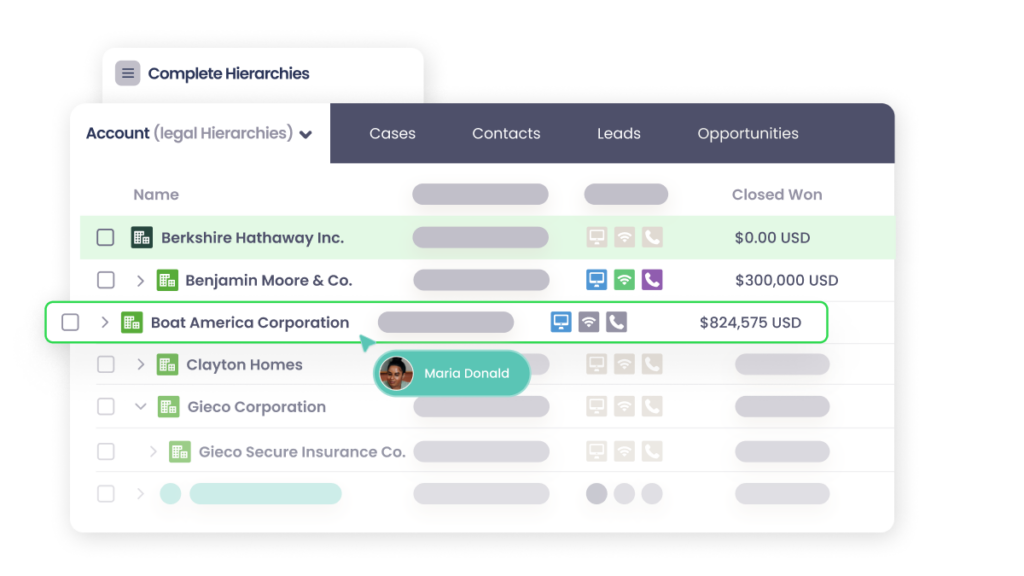
The Native Salesforce hierarchy view has a hard stop at 2,000 accounts. But Complete Hierarchies helps you render the full corporate family as one visual tree.
You get roll-up numbers on each brand, multiple saved views and permission sets per team, and a drag-and-drop editor that lets you make changes on the fly. Anybody can open an enterprise and see every subsidiary, who owns it, and where you already have business.
Without a visual view of your book of business, what reps know about an account depends on who they’ve talked to, which is the exact problem Stukent ran into.
Before Traction Complete, we were completely flying blind. It was a complete mess.
Alicia Andera, Director of Revenue Operations at Stukent
We had people who knew about contracts and others who didn’t.
I was not able to give the team a visual [hierarchy] tool where they could quickly see where we had the business across a particular district.
Roll up, report, and route on the verified tree
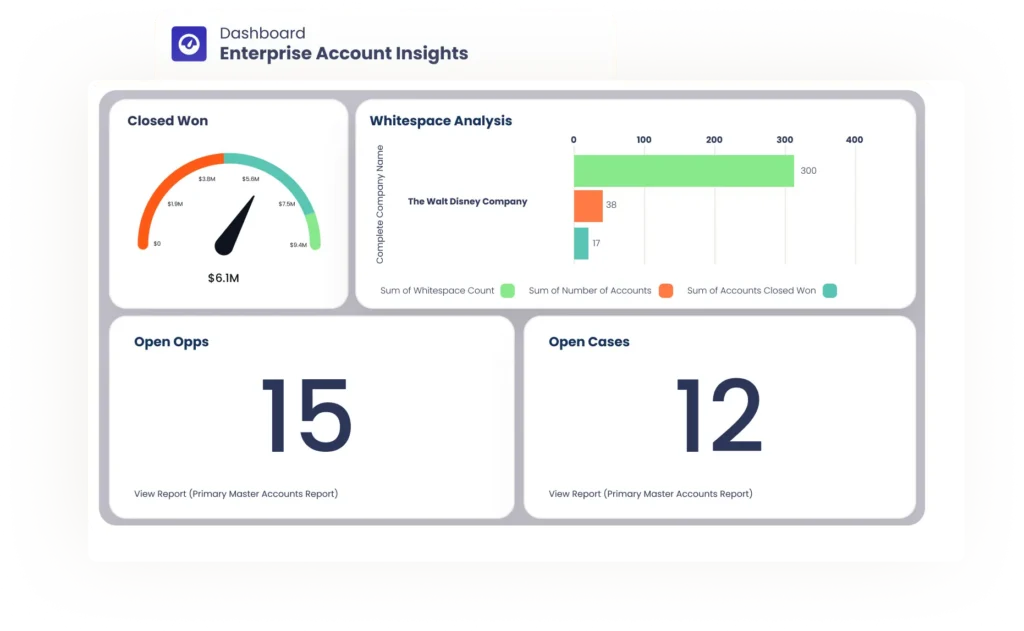
Natively, hierarchy totals need an Apex job or a dedicated roll-up tool that runs whether your corporate family trees were right or wrong. Complete Hierarchies’ built-in roll-up reporting works on the verified hierarchy instead, on the corporate family tree and any related object — without diving into the Apex layer.
- Opportunity count and pipeline roll up by corporate family. The family total decides whether an account plans as enterprise or SMB, and a total missing subsidiaries decides it wrong.
- Whitespace penetration ranks the relationships with room to grow. Low penetration helps plan expansion targeting; high penetration marks accounts to defend.
- Net revenue retention computes on the family. A renewal plus a new subsidiary reads as growth instead of false churn.
Zoom uses the whitespace roll-up exactly this way.
Complete Hierarchies allows our sales team to identify whitespace and partner with account executives across the globe to sell our platform to its fullest extent.
Heidi Davis, Manager of Sales Operations and Global Data at Zoom
Assignment reads the audited and verified links, too. Complete Leads uses the finished tree for hierarchy-based lead routing: assignment rules consider parent ownership and opportunity activity across the hierarchy alongside the child record’s own fields.
Everything runs 100% native to Salesforce, and account data stays in your org.
An Audited Hierarchy Turns Account Strategy into Execution
Executed correctly, a Salesforce account hierarchy gives you an accurate read on your book of business. But what a clean and verified account hierarchy can help you achieve goes beyond basic reporting.
An account strategy assumes you know which enterprises you’re in, which you’re not, and who should be working what.
In Salesforce, those assumptions live in the account hierarchy. And account strategy executes wherever the hierarchy points to.
Three questions your account strategy asks depends on that hierarchy: where to focus, how warm the path is, and when to move.
- Where to focus. A big logo on the account list hides the divisions underneath it.
On a verified tree, every division is its own account, with its own pipeline or none at all. The ones with none are your whitespace, and you can pull them as a report. - How warm the path is. If you’re opening a new subsidiary you should know when the company already has a champion two branches over.
But that knowledge only exists when you can see the accounts are related. And when history sits scattered across duplicates and orphans, reps end up cold-calling enterprises the company already knows. - When to move. Acquisitions are maintenance triggers for auditing, but it’s also a signal (and an opening) for your account strategy.
Deals change who owns the budget and which vendors get consolidated, and the early bird that notices gets that first conversation.
Without the hierarchy, you answer the above questions with guesswork. The biggest logo gets the attention, warm paths go unused, and deals get discovered at renewal.
That’s the gap between having an account strategy and executing one.
And everything in this article closes that gap by hand: the five-step Salesforce account hierarchy audit to find what’s broken, the fixes that repair it, and the schedule that prevents it from drifting.
Complete Hierarchies closes systematically, auditing the family trees and putting the whitespace, warm-path, and timing reads in front of your account team.
Book a Complete Hierarchies demo and see both against your own account data: the account hierarchy audit running automatically, and the whitespace, warm paths, and deal timing an audited tree surfaces.
Account Hierarchy Audit FAQs
-
What are the best tools for auditing an existing account hierarchy?
-
The best tool for auditing an existing account hierarchy is a purpose-built app such as Complete Hierarchies. It checks the whole org for orphans, duplicates, and wrong parent links, and fixes what it finds in bulk. The best free account hierarchy audit option are native Salesforce reports and SOQL, which find orphans and duplicates but leave the fixing to you. Corporate family data from a provider like Dun & Bradstreet or ZoomInfo supports both free and purpose-built options by showing what the hierarchy should look like through external data.
-
What is an orphaned account in Salesforce?
-
An orphaned account belongs to a corporate family but has a blank Parent Account field, so Salesforce treats it as a standalone company. Most orphans come from imports and lead conversion, where nothing fills in the parent link. Roll-ups, territory logic, and account-based reporting all undercount families that contain orphans.
-
Can you audit an account hierarchy with native Salesforce reports alone?
-
Partially. Native reports and SOQL surface orphaned accounts, duplicate accounts, and ownership sitting on the wrong branch. But actually checking whether the structure matches the real corporate family requires an outside reference, such as corporate family data from data providers like D&B or ZoomInfo. Salesforce Data Loader can mass-update parent links once you have a mapping, but no native feature builds or validates that mapping.